

Python从Excel中按行提取图片的实现方法
本文提供了两个Python脚本,用于从Excel中批量提取嵌入图片并按行命名。两个版本均能自动按工作表创建文件夹,并以对应行A列内容命名图片,同时处理重名和非法字符。主要区别在于:版本一保持图片原始格式,适合需保留透明背景等属性的场景;版本二统一转换为JPG格式,可调节压缩质量并自动填充。
在处理Excel文件时,批量导出其中的图片并按特定规则命名,是许多数据分析、物料管理和内容归档工作中的常见痛点。手动操作不仅繁琐,还极易出错。今天,我们就来分享两个“开箱即用”的Python脚本,帮你彻底解决这个问题。
这两个版本都实现了核心功能:按工作表自动创建文件夹,并根据图片所在行的A列内容来命名图片文件。同时,它们都内置了重名处理和非法字符过滤机制,确保运行稳定。二者的主要区别在于对图片格式的处理策略不同。
版本一:保持原始格式
如果你需要严格保留图片的原始属性,比如PNG的透明背景、GIF的动态效果,或者不希望因二次压缩损失画质,那么这个版本就是为你准备的。它会原封不动地保存图片的原始格式。
import openpyxl
from PIL import Image as PILImage
import io
import os


def extract_images_from_excel(excel_path, output_dir=None):
    """
    按行提取 Excel 中的图片,存储到以 Sheet 名称命名的文件夹下,
    图片命名为该行第一个字段的值(即A列),保持原始格式。
    """
    if output_dir is None:
        output_dir = os.path.dirname(os.path.abspath(excel_path))

    os.makedirs(output_dir, exist_ok=True)

    wb = openpyxl.load_workbook(excel_path)
    extracted_count = 0

    for sheet_name in wb.sheetnames:
        ws = wb[sheet_name]
        print(f"处理工作表: {sheet_name}")

        safe_sheet_name = "".join(
            c for c in sheet_name if c not in r'\/:*?"<>|'
        ).strip()
        sheet_dir = os.path.join(output_dir, safe_sheet_name)
        os.makedirs(sheet_dir, exist_ok=True)

        # 收集每行A列的值
        row_first_cell = {}
        for row in range(1, ws.max_row + 1):
            cell_value = ws.cell(row=row, column=1).value
            if cell_value is not None:
                row_first_cell[row] = str(cell_value)

        for image in ws._images:
            anchor = image.anchor
            if hasattr(anchor, '_from'):
                row_num = anchor._from.row + 1
            elif hasattr(anchor, 'row'):
                row_num = anchor.row + 1
            else:
                print(f"  ⚠️ 无法确定图片行号,跳过")
                continue

            first_cell_value = row_first_cell.get(row_num, None)
            if first_cell_value is None:
                print(f"  ⚠️ 第{row_num}行第一个字段为空,跳过")
                continue

            safe_name = "".join(
                c for c in first_cell_value if c not in r'\/:*?"<>|'
            ).strip()
            if not safe_name:
                safe_name = f"row_{row_num}"

            img_data = image._data()
            img = PILImage.open(io.BytesIO(img_data))

            # 获取原始格式
            img_format = img.format.lower() if img.format else 'png'

            filename = f"{safe_name}.{img_format}"
            filepath = os.path.join(sheet_dir, filename)

            counter = 1
            base_name = safe_name
            while os.path.exists(filepath):
                filename = f"{base_name}_{counter}.{img_format}"
                filepath = os.path.join(sheet_dir, filename)
                counter += 1

            img.sa ve(filepath)
            extracted_count += 1
            print(f"  ✅ 第{row_num}行 -> {safe_sheet_name}/{filename}")

    print(f"\n? 完成!共提取 {extracted_count} 张图片,保存至: {output_dir}")


if __name__ == '__main__':
    excel_path = 'cards.xlsx'   # 修改为你的文件
    extract_images_from_excel(excel_path, output_dir='images')
版本二:统一存储为JPG格式
对于需要统一图片格式、减小文件总体积,或者后续处理流程只接受JPG的场景,这个版本会更合适。它会将所有图片统一转换为JPG格式,并自动处理透明背景(填充为白色),你还可以自由调节输出图片的质量。
import openpyxl
from PIL import Image as PILImage
import io
import os


def extract_images_as_jpg(excel_path, output_dir=None, jpg_quality=85):
    """
    按行提取 Excel 中的图片,统一转换为 JPG 格式存储。
    参数:
        excel_path: Excel 文件路径
        output_dir: 输出根目录
        jpg_quality: JPG 压缩质量 (1-100),默认85
    """
    if output_dir is None:
        output_dir = os.path.dirname(os.path.abspath(excel_path))

    os.makedirs(output_dir, exist_ok=True)

    wb = openpyxl.load_workbook(excel_path)
    extracted_count = 0

    for sheet_name in wb.sheetnames:
        ws = wb[sheet_name]
        print(f"处理工作表: {sheet_name}")

        safe_sheet_name = "".join(
            c for c in sheet_name if c not in r'\/:*?"<>|'
        ).strip()
        sheet_dir = os.path.join(output_dir, safe_sheet_name)
        os.makedirs(sheet_dir, exist_ok=True)

        # 收集每行A列的值
        row_first_cell = {}
        for row in range(1, ws.max_row + 1):
            cell_value = ws.cell(row=row, column=1).value
            if cell_value is not None:
                row_first_cell[row] = str(cell_value)

        for image in ws._images:
            anchor = image.anchor
            if hasattr(anchor, '_from'):
                row_num = anchor._from.row + 1
            elif hasattr(anchor, 'row'):
                row_num = anchor.row + 1
            else:
                print(f"  ⚠️ 无法确定图片行号,跳过")
                continue

            first_cell_value = row_first_cell.get(row_num, None)
            if first_cell_value is None:
                print(f"  ⚠️ 第{row_num}行第一个字段为空,跳过")
                continue

            safe_name = "".join(
                c for c in first_cell_value if c not in r'\/:*?"<>|'
            ).strip()
            if not safe_name:
                safe_name = f"row_{row_num}"

            img_data = image._data()
            img = PILImage.open(io.BytesIO(img_data))

            # ----- 转换为 JPG 的关键代码 -----
            # 若图片为 RGBA(带透明通道),需转换为 RGB(白色背景)
            if img.mode in ('RGBA', 'LA', 'P'):
                # 创建白色背景
                background = PILImage.new('RGB', img.size, (255, 255, 255))
                # 将原图粘贴到背景(使用透明通道作为掩码)
                if img.mode == 'P':
                    img = img.convert('RGBA')
                background.paste(img, mask=img.split()[-1] if img.mode == 'RGBA' else None)
                img = background
            elif img.mode != 'RGB':
                img = img.convert('RGB')
            # -----------------------------

            filename = f"{safe_name}.jpg"
            filepath = os.path.join(sheet_dir, filename)

            counter = 1
            base_name = safe_name
            while os.path.exists(filepath):
                filename = f"{base_name}_{counter}.jpg"
                filepath = os.path.join(sheet_dir, filename)
                counter += 1

            # 保存为 JPG,可指定质量
            img.sa ve(filepath, 'JPEG', quality=jpg_quality)
            extracted_count += 1
            print(f"  ✅ 第{row_num}行 -> {safe_sheet_name}/{filename} (JPG质量={jpg_quality})")

    print(f"\n? 完成!共提取 {extracted_count} 张图片,已统一为JPG格式,保存至: {output_dir}")


if __name__ == '__main__':
    excel_path = 'cards.xlsx'   # 修改为你的文件
    extract_images_as_jpg(excel_path, output_dir='images_jpg', jpg_quality=85)
如何选择:两个版本的核心区别
为了让你能快速决策,这里将两个方案的核心差异对比如下:
| 特性 | 版本一(原格式) | 版本二(统一JPG) |
|---|---|---|
| 输出扩展名 | .png / .jpg / .gif 等原样保留 | 统一为 .jpg |
| 透明背景处理 | 保留原图(PNG透明通道) | 白色背景填充 |
| 压缩控制 | 无(原样保存) | 可调节 quality 参数 |
| 适用场景 | 需要保留原始质量/透明效果 | 统一浏览、减小体积 |
| 输出文件夹 | images/ | images_jpg/ |
通用使用步骤
无论选择哪个版本,准备工作都是类似的:
1. 安装依赖
首先,确保你的Python环境已安装必要的库:
pip install openpyxl pillow
2. 准备Excel文件
- 确认图片是“嵌入”到单元格中的,而不是作为浮动对象链接的外部文件。
- 检查每个包含图片的行,其A列必须有一个非空的值,这个值将作为图片的文件名。
3. 选择版本并修改路径
将脚本末尾的 excel_path = 'cards.xlsx' 替换成你实际Excel文件的路径。你也可以根据需要修改 output_dir 参数来指定输出目录。
4. 运行脚本
python extract_images.py # 或 extract_as_jpg.py
5. 查看结果
脚本运行后,会在你指定的输出目录下,为每个工作表创建一个同名的子文件夹,所有图片都会按A列的值命名并保存在对应的文件夹里。
需要注意的几个细节
- 图片定位原理:脚本依赖于openpyxl库读取图片的锚点属性来定位其所在行。如果图片横跨了多行或者位于合并单元格内,定位可能不准确。最稳妥的方式是确保每张图片完整地放置在某一行内。
- 命名冲突处理:如果同一个工作表内,不同行的A列值相同,脚本会自动为后续文件添加
_1、_2这样的后缀,避免覆盖。 - 文件名安全:Windows系统中不允许作为文件名的字符(如
/ \ : * ? " < > |)会被自动过滤掉。 - 关于JPG版本:如果原图是GIF动图,转换后只会保存第一帧;如果原图是CMYK色彩模式,则会自动转换为RGB模式,这是JPG格式的标准要求。
灵活的扩展建议
这两个脚本提供了很好的基础,你可以根据实际需求轻松调整:
- 修改命名依据的列:如果想用B列的内容来命名图片,只需在代码中找到
column=1的地方,将其改为column=2即可。 - 批量处理多个文件:可以在脚本外层加一个循环,遍历文件夹下的所有Excel文件,依次调用提取函数。
- 支持其他输出格式:在版本二中,将保存图片时的
'JPEG'参数改为'PNG',就可以统一输出为PNG格式,不过文件体积会比较大。 - 保留透明通道的统一格式:如果你希望统一输出格式但又想保留PNG的透明背景,可以基于版本二的代码,去掉转换为RGB的步骤,直接保存为PNG格式。
总结
通过以上两个Python脚本,我们解决了从Excel中批量、按规则导出图片的自动化需求。一个忠于原貌,一个统一格式,它们覆盖了绝大多数办公场景。你只需要复制代码,修改文件路径,就能将繁琐的手动操作转化为瞬间完成的自动化流程。选择适合你需求的那个版本,开始体验高效办公吧。
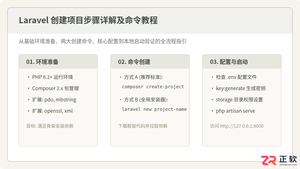
详解使用Composer与Laravel安装器创建Laravel项目的完整步骤、核心命令及环境配置,包含目录权限、环境文件与常见报错排查。

本教程详细介绍 Google ADK(Android Accessory Development Kit)在 Python 环境下的安装与配置方法,涵盖 Python 基础环境检查、虚拟环境搭建、依赖库与包安装、以及硬件通信权限排查。
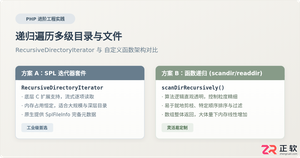
深入解析在PHP中递归遍历多级目录文件的两种核心方案:基于SPL标准库的RecursiveDirectoryIterator高效流式迭代,与基于scandir/opendir的自定义递归函数实现,剖析执行机制、内存表现与实战避坑指南。
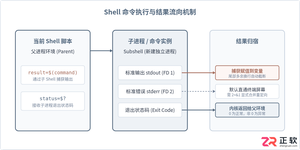
详细讲解在Shell脚本中执行命令并获取执行结果的常用方法,涵盖标准输出捕获、退出状态码判断、错误流重定向、多行结果处理及常见避坑要点。
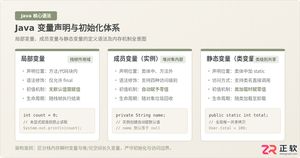
系统解析Java局部变量、成员变量与静态变量的定义语法、声明与初始化机制、生命周期及JVM内存驻留规则,结合图解与代码示例分析常见编译错误与认知误区。
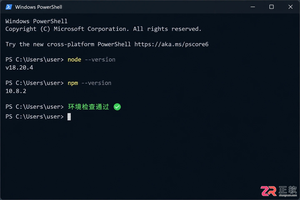
详解如何在Windows 10/11上安装Claude Code。涵盖WSL与Git Bash终端选择、Node.js版本检查、npm全局安装步骤、身份验证流程及claude doctor诊断方法,帮助开发者快速搭建本地AI编码助手。

深入浅出解析TypeScript是什么语言。本文详细介绍TypeScript的语言定义、超集架构、核心运行原理、与JavaScript的核心对比以及四类典型工业级应用场景,帮助读者全面看懂TS的价值与用途。

详解如何在 Windows 电脑上通过 Microsoft Store 安装 Codex 桌面应用,包括启动登录、切换 Codex 模式、关联本地代码项目及终端环境配置的界面操作指引。
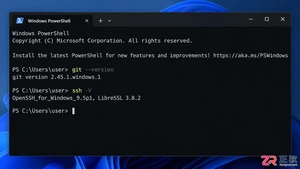
本文详解如何在Windows环境中使用PowerShell生成SSH密钥对,配置ssh-agent自动加载私钥,并将公钥安全添加至GitHub账户,最后通过git remote set-url切换为SSH地址,解决每次操作需输入账号密码的问题。




WPS Office是一款面向macOS用户的综合办公套件,将文字处理、电子表格、演示文稿、PDF工具、模板与云协作整合在同一应用中。它兼容常见Microsoft Office格式,支持Intel及Apple芯片Mac,基础功能可免费使用,

Shapr3D是一款面向工业设计、机械工程、建筑概念和三维打印工作流的CAD软件。Mac版采用Parasolid建模内核,支持草图约束、实体建模、工程图、可视化渲染及常见CAD格式交换,并可通过账户在多台设备之间同步项目。

REAPER是Cockos开发的数字音频工作站,提供多轨音频与MIDI录制、剪辑、处理、混音和母带制作工具。Mac版兼容Intel与Apple芯片,支持AU、VST、VST3、CLAP等插件格式,并提供高度可定制的工作流程。

Adobe Photoshop 是面向摄影师、设计师和内容创作者的专业图像处理工具,可在 Windows 上完成照片修饰、选区抠图、图层合成、文字排版、绘画及生成式编辑。软件采用订阅授权,由 Creative Cloud 管理安装、更新与许

Adobe InDesign 是面向印刷与数字出版的专业页面排版工具,可制作书籍、杂志、宣传册、海报、交互式 PDF 和电子书。它提供精细的文字样式、多页面管理、印前检查及多格式输出能力,并能与 Photoshop、Illustrator

Adobe Illustrator 是用于绘制矢量图形、插画、图标、徽标和版式的专业设计工具。它以路径和锚点为核心,作品放大后仍能保持清晰,并提供画板、文字、渐变、图像描摹及精确变换等功能,适合品牌视觉、印刷物料、数字界面和商业插画创作。