

Python实现自动生成动态分析报告(PPT/PDF)
介绍Python实现自动生成动态分析报告的方法,涵盖使用python-pptx创建和编辑PPT,插入表格、图表、图片;利用reportlab或FPDF生成PDF报告;搭建模板化报告系统,并通过定时任务实现全自动生成,显著提升数据分析报告输出效率。
本节学习目标
学完这一节,你就能搞定这些事儿:

- 明白自动化报告到底能用在哪儿、值不值得学
- 上手
python-pptx库,自己能创建和编辑PPT - 把数据分析结果——表格、图表、图片——一键塞进PPT
- 用
reportlab或FPDF生成像样的PDF报告 - 搭一套模板化报告系统,以后动动手指就能出活
- 理解怎么用定时任务把整个流程串起来,实现全自动
为什么学这个
先脑补一个场景:你是个数据分析师,每周一早上都要给部门交上周的业务数据报告。日常工作流大概是:
- 从数据库导出数据
- Pandas做数据处理
- Matplotlib/Seaborn画图
- 手动打开PPT,一张张粘贴图表、调整格式、更新数据
- 导出PDF,发邮件
前几步你已经很溜了,但第四步——手动做PPT——可能一搞就是两三个小时。更要命的是,每周都得重复这套动作。
如果这个过程能自动跑起来呢? 代码写好之后,每周一早上,一份排版漂亮、数据最新的PPT报告自动生成,你只要过一遍、发出去就行。这就是这一节要带你去的地方。
打个比方:数据分析好比“做菜”,报告自动化就是“自动上菜系统”。菜做得再好,上菜又慢又丑,客人体验也打折。而有了这套系统,你只管把菜做好,上菜的事交给机器。
核心知识点讲解
python-pptx 基础
安装与基本用法
# 安装: pip install python-pptx

from pptx import Presentation
from pptx.util import Inches, Pt, Emu
from pptx.enum.text import PP_ALIGN
from pptx.dml.color import RGBColor
import os

# 创建一个空白演示文稿
prs = Presentation()

# 设置幻灯片尺寸(16:9 宽屏)
prs.slide_width = Inches(13.333)
prs.slide_height = Inches(7.5)

# 添加一张空白幻灯片
blank_layout = prs.slide_layouts[6]  # 6 = 空白版式
slide = prs.slides.add_slide(blank_layout)

# 添加标题
title_box = slide.shapes.add_textbox(
    Inches(1), Inches(2), Inches(11.333), Inches(1.5)
)
title_frame = title_box.text_frame
title_frame.word_wrap = True
p = title_frame.paragraphs[0]
p.text = "2024年第一季度业务数据报告"
p.font.size = Pt(36)
p.font.bold = True
p.font.color.rgb = RGBColor(0x2C, 0x3E, 0x50)
p.alignment = PP_ALIGN.CENTER

# 添加副标题
subtitle_box = slide.shapes.add_textbox(
    Inches(1), Inches(4), Inches(11.333), Inches(1)
)
subtitle_frame = subtitle_box.text_frame
subtitle_frame.word_wrap = True
p2 = subtitle_frame.paragraphs[0]
p2.text = "自动生成 | 数据分析部"
p2.font.size = Pt(20)
p2.font.color.rgb = RGBColor(0x7F, 0x8C, 0x8D)
p2.alignment = PP_ALIGN.CENTER

# 保存
output_path = "业务报告_模板演示.pptx"
prs.sa ve(output_path)
print(f"演示文稿已保存至: {output_path}")
文本框与段落格式化
# 演示各种文本格式设置
prs = Presentation()
slide_layout = prs.slide_layouts[6]
slide = prs.slides.add_slide(slide_layout)

# 创建一个多段落文本框
textbox = slide.shapes.add_textbox(
    Inches(1), Inches(1), Inches(11), Inches(5)
)
tf = textbox.text_frame
tf.word_wrap = True

# 第一段:标题
p = tf.paragraphs[0]
p.text = "业务摘要"
p.font.size = Pt(28)
p.font.bold = True
p.font.color.rgb = RGBColor(0xE7, 0x4C, 0x3C)
p.space_after = Pt(12)

# 第二段:正文
p2 = tf.add_paragraph()
p2.text = "本季度销售额同比增长15.3%,主要得益于新产品线的成功推广。"
p2.font.size = Pt(16)
p2.font.color.rgb = RGBColor(0x2C, 0x3E, 0x50)
p2.space_after = Pt(8)

# 第三段:要点
key_points = [
    "线上渠道贡献了62%的销售额",
    "复购率提升至38%,较去年提高5个百分点",
    "客户满意度评分4.5/5.0,达到历史新高"
]

for point in key_points:
    p = tf.add_paragraph()
    p.text = f"• {point}"
    p.font.size = Pt(14)
    p.font.color.rgb = RGBColor(0x34, 0x49, 0x5E)
    p.level = 0
    p.space_before = Pt(4)

prs.sa ve("文本格式化示例.pptx")
print("文本格式化示例已保存")
添加表格
import pandas as pd

# 创建示例数据
sales_data = pd.DataFrame({
    "产品类别": ["电子产品", "服装鞋帽", "食品饮料", "家居用品", "图书文具"],
    "销售额(万元)": [580, 420, 310, 260, 95],
    "同比增长": ["+18.5%", "+12.3%", "+8.7%", "+22.1%", "+5.2%"],
    "占比": ["34.8%", "25.2%", "18.6%", "15.6%", "5.7%"]
})

prs = Presentation()
slide = prs.slides.add_slide(prs.slide_layouts[6])

# 添加标题
title_box = slide.shapes.add_textbox(Inches(0.5), Inches(0.3), Inches(12), Inches(0.8))
title_tf = title_box.text_frame
title_tf.paragraphs[0].text = "各产品销售数据"
title_tf.paragraphs[0].font.size = Pt(24)
title_tf.paragraphs[0].font.bold = True
title_tf.paragraphs[0].font.color.rgb = RGBColor(0x2C, 0x3E, 0x50)

# 添加表格
rows, cols = len(sales_data) + 1, len(sales_data.columns)
table_shape = slide.shapes.add_table(rows, cols, Inches(1), Inches(1.5), Inches(10), Inches(3))
table = table_shape.table

# 设置列宽
col_widths = [Inches(2.5), Inches(2.5), Inches(2.5), Inches(2.5)]
for i, width in enumerate(col_widths):
    table.columns[i].width = width

# 填充表头
for j, col_name in enumerate(sales_data.columns):
    cell = table.cell(0, j)
    cell.text = col_name
    for paragraph in cell.text_frame.paragraphs:
        paragraph.font.size = Pt(14)
        paragraph.font.bold = True
        paragraph.font.color.rgb = RGBColor(0xFF, 0xFF, 0xFF)
        paragraph.alignment = PP_ALIGN.CENTER
    # 设置表头背景色
    cell_fill = cell.fill
    cell_fill.solid()
    cell_fill.fore_color.rgb = RGBColor(0x2C, 0x3E, 0x50)

# 填充数据行
for i, row in sales_data.iterrows():
    for j, value in enumerate(row):
        cell = table.cell(i + 1, j)
        cell.text = str(value)
        for paragraph in cell.text_frame.paragraphs:
            paragraph.font.size = Pt(12)
            paragraph.alignment = PP_ALIGN.CENTER
            # 增长率大于15%的用绿色,否则用红色
            if j == 1 and i == 0:  # 销售额最高行
                paragraph.font.bold = True
                cell.fill.solid()
                cell.fill.fore_color.rgb = RGBColor(0xEA, 0xFA, 0xEA)

prs.sa ve("表格示例_销售数据.pptx")
print("表格示例已保存")
在PPT中插入图表和图片
生成分析图表并插入PPT
import matplotlib.pyplot as plt
import matplotlib
matplotlib.use("Agg")  # 无GUI环境使用

# 生成销售趋势图
fig, ax = plt.subplots(figsize=(10, 5))
months = ["1月", "2月", "3月"]
sales = [520, 480, 665]  # 万元
bars = ax.bar(months, sales, color=["#3498db", "#2ecc71", "#e74c3c"], width=0.5)

for bar, val in zip(bars, sales):
    ax.text(bar.get_x() + bar.get_width()/2, bar.get_height() + 10,
            f"{val}万", ha="center", fontweight="bold", fontsize=12)

ax.set_title("季度销售额趋势", fontsize=14, fontweight="bold")
ax.set_ylabel("销售额(万元)")
ax.set_ylim(0, 800)
plt.tight_layout()
plt.sa vefig("sales_chart.png", dpi=150, bbox_inches="tight")
plt.close()

# 将图表插入PPT
prs = Presentation()
slide = prs.slides.add_slide(prs.slide_layouts[6])

# 标题
title_box = slide.shapes.add_textbox(Inches(0.5), Inches(0.3), Inches(12), Inches(0.8))
title_box.text_frame.paragraphs[0].text = "Q1销售额趋势分析"
title_box.text_frame.paragraphs[0].font.size = Pt(24)
title_box.text_frame.paragraphs[0].font.bold = True

# 插入图表图片
slide.shapes.add_picture(
    "sales_chart.png",
    Inches(0.5), Inches(1.2),
    Inches(12), Inches(5)
)

# 添加数据解读
insight_box = slide.shapes.add_textbox(Inches(1), Inches(6.3), Inches(10), Inches(1))
insight_tf = insight_box.text_frame
insight_tf.word_wrap = True
p = insight_tf.paragraphs[0]
p.text = "数据解读:3月销售额显著增长,主要受春季促销活动拉动,环比2月增长38.5%。"
p.font.size = Pt(14)
p.font.color.rgb = RGBColor(0x7F, 0x8C, 0x8D)

prs.sa ve("图表插入示例.pptx")
print("图表插入示例已保存")
添加形状和装饰元素
from pptx.util import Emu
from pptx.enum.shapes import MSO_SHAPE

prs = Presentation()
prs.slide_width = Inches(13.333)
prs.slide_height = Inches(7.5)
slide = prs.slides.add_slide(prs.slide_layouts[6])

# 添加顶部色块装饰
shape = slide.shapes.add_shape(
    MSO_SHAPE.RECTANGLE,
    Inches(0), Inches(0), Inches(13.333), Inches(1.2)
)
shape.fill.solid()
shape.fill.fore_color.rgb = RGBColor(0x2C, 0x3E, 0x50)
shape.line.fill.background()

# 在色块上添加标题
title_box = slide.shapes.add_textbox(Inches(0.5), Inches(0.2), Inches(12), Inches(0.8))
title_box.text_frame.paragraphs[0].text = "核心指标一览"
title_box.text_frame.paragraphs[0].font.size = Pt(28)
title_box.text_frame.paragraphs[0].font.bold = True
title_box.text_frame.paragraphs[0].font.color.rgb = RGBColor(0xFF, 0xFF, 0xFF)

# 添加4个KPI卡片
kpi_data = [
    ("总销售额", "1665万", "+15.3%", "#2ecc71"),
    ("活跃用户", "52.3万", "+8.7%", "#3498db"),
    ("转化率", "4.2%", "+0.5pp", "#f39c12"),
    ("客单价", "186元", "+3.1%", "#9b59b6")
]

card_width = Inches(2.8)
card_height = Inches(2)
gap = Inches(0.4)
start_x = Inches(1)
start_y = Inches(2)

for i, (label, value, change, color) in enumerate(kpi_data):
    x = start_x + i * (card_width + gap)

    # 卡片背景
    card = slide.shapes.add_shape(
        MSO_SHAPE.ROUNDED_RECTANGLE, x, start_y, card_width, card_height
    )
    card.fill.solid()
    card.fill.fore_color.rgb = RGBColor(0xF8, 0xF9, 0xFA)
    card.line.color.rgb = RGBColor(0xDE, 0xE2, 0xE6)
    card.line.width = Pt(1)

    # 顶部彩色条
    bar = slide.shapes.add_shape(
        MSO_SHAPE.RECTANGLE, x, start_y, card_width, Inches(0.1)
    )
    bar.fill.solid()
    bar.fill.fore_color.rgb = RGBColor(
        int(color[1:3], 16), int(color[3:5], 16), int(color[5:7], 16)
    )
    bar.line.fill.background()

    # 指标标签
    label_box = slide.shapes.add_textbox(x, start_y + Inches(0.3), card_width, Inches(0.5))
    label_box.text_frame.paragraphs[0].text = label
    label_box.text_frame.paragraphs[0].font.size = Pt(12)
    label_box.text_frame.paragraphs[0].font.color.rgb = RGBColor(0x7F, 0x8C, 0x8D)
    label_box.text_frame.paragraphs[0].alignment = PP_ALIGN.CENTER

    # 指标数值
    value_box = slide.shapes.add_textbox(x, start_y + Inches(0.7), card_width, Inches(0.6))
    value_box.text_frame.paragraphs[0].text = value
    value_box.text_frame.paragraphs[0].font.size = Pt(28)
    value_box.text_frame.paragraphs[0].font.bold = True
    value_box.text_frame.paragraphs[0].font.color.rgb = RGBColor(0x2C, 0x3E, 0x50)
    value_box.text_frame.paragraphs[0].alignment = PP_ALIGN.CENTER

    # 变化趋势
    change_box = slide.shapes.add_textbox(x, start_y + Inches(1.4), card_width, Inches(0.4))
    change_box.text_frame.paragraphs[0].text = f"环比 {change}"
    change_box.text_frame.paragraphs[0].font.size = Pt(11)
    change_box.text_frame.paragraphs[0].font.color.rgb = RGBColor(0x2E, 0xCC, 0x71)
    change_box.text_frame.paragraphs[0].alignment = PP_ALIGN.CENTER

prs.sa ve("KPI卡片示例.pptx")
print("KPI卡片示例已保存")
模板化报告系统
设计报告模板
模板化报告的核心思想其实一句话就能说清楚:把报告的结构(模板)和数据(内容)拆开。结构固定下来,数据往里灌,报告就自动出来了。
# ========== 模板化报告生成系统 ==========

class ReportGenerator:
    """自动化报告生成器"""

    def __init__(self, title="业务分析报告", author="数据分析部"):
        self.prs = Presentation()
        self.prs.slide_width = Inches(13.333)
        self.prs.slide_height = Inches(7.5)
        self.title = title
        self.author = author
        self._setup_colors()

    def _setup_colors(self):
        """设置品牌色系"""
        self.colors = {
            "primary": RGBColor(0x2C, 0x3E, 0x50),     # 深蓝灰
            "secondary": RGBColor(0x34, 0x98, 0xDB),    # 亮蓝
            "accent": RGBColor(0xE7, 0x4C, 0x3C),       # 红色
            "success": RGBColor(0x2E, 0xCC, 0x71),      # 绿色
            "warning": RGBColor(0xF3, 0x9C, 0x12),      # 橙色
            "text": RGBColor(0x2C, 0x3E, 0x50),         # 正文色
            "light_text": RGBColor(0x7F, 0x8C, 0x8D),   # 浅文字
            "bg": RGBColor(0xF8, 0xF9, 0xFA),           # 背景色
            "white": RGBColor(0xFF, 0xFF, 0xFF)
        }

    def add_cover_slide(self):
        """添加封面页"""
        slide = self.prs.slides.add_slide(self.prs.slide_layouts[6])

        # 背景色块
        bg = slide.shapes.add_shape(
            MSO_SHAPE.RECTANGLE, Inches(0), Inches(0),
            Inches(13.333), Inches(7.5)
        )
        bg.fill.solid()
        bg.fill.fore_color.rgb = self.colors["primary"]
        bg.line.fill.background()

        # 装饰线条
        line = slide.shapes.add_shape(
            MSO_SHAPE.RECTANGLE, Inches(1), Inches(3.2),
            Inches(2), Inches(0.05)
        )
        line.fill.solid()
        line.fill.fore_color.rgb = self.colors["accent"]
        line.line.fill.background()

        # 标题
        title_box = slide.shapes.add_textbox(
            Inches(1), Inches(2.5), Inches(11), Inches(1)
        )
        title_box.text_frame.paragraphs[0].text = self.title
        title_box.text_frame.paragraphs[0].font.size = Pt(40)
        title_box.text_frame.paragraphs[0].font.bold = True
        title_box.text_frame.paragraphs[0].font.color.rgb = self.colors["white"]

        # 副标题
        sub_box = slide.shapes.add_textbox(
            Inches(1), Inches(3.5), Inches(11), Inches(0.8)
        )
        sub_box.text_frame.paragraphs[0].text = f"{self.author} | 自动生成"
        sub_box.text_frame.paragraphs[0].font.size = Pt(18)
        sub_box.text_frame.paragraphs[0].font.color.rgb = RGBColor(0xB0, 0xBE, 0xC5)

        return slide

    def add_kpi_slide(self, kpis):
        """添加KPI概览页"""
        slide = self.prs.slides.add_slide(self.prs.slide_layouts[6])

        # 标题栏
        header = slide.shapes.add_shape(
            MSO_SHAPE.RECTANGLE, Inches(0), Inches(0), Inches(13.333), Inches(1)
        )
        header.fill.solid()
        header.fill.fore_color.rgb = self.colors["primary"]
        header.line.fill.background()

        title_box = slide.shapes.add_textbox(
            Inches(0.5), Inches(0.15), Inches(12), Inches(0.7)
        )
        title_box.text_frame.paragraphs[0].text = "核心指标概览"
        title_box.text_frame.paragraphs[0].font.size = Pt(24)
        title_box.text_frame.paragraphs[0].font.bold = True
        title_box.text_frame.paragraphs[0].font.color.rgb = self.colors["white"]

        # KPI卡片
        n = len(kpis)
        card_width = Inches(2.8)
        card_height = Inches(2.2)
        gap = Inches(0.35)
        start_x = (Inches(13.333) - n * card_width - (n-1) * gap) / 2
        start_y = Inches(1.8)

        for i, (label, value, change) in enumerate(kpis):
            x = start_x + i * (card_width + gap)

            card = slide.shapes.add_shape(
                MSO_SHAPE.ROUNDED_RECTANGLE, x, start_y, card_width, card_height
            )
            card.fill.solid()
            card.fill.fore_color.rgb = self.colors["bg"]
            card.line.color.rgb = RGBColor(0xDE, 0xE2, 0xE6)

            # 数值
            val_box = slide.shapes.add_textbox(x, start_y + Inches(0.4), card_width, Inches(0.8))
            val_box.text_frame.paragraphs[0].text = value
            val_box.text_frame.paragraphs[0].font.size = Pt(30)
            val_box.text_frame.paragraphs[0].font.bold = True
            val_box.text_frame.paragraphs[0].font.color.rgb = self.colors["text"]
            val_box.text_frame.paragraphs[0].alignment = PP_ALIGN.CENTER

            # 标签
            lbl_box = slide.shapes.add_textbox(x, start_y + Inches(1.2), card_width, Inches(0.4))
            lbl_box.text_frame.paragraphs[0].text = label
            lbl_box.text_frame.paragraphs[0].font.size = Pt(12)
            lbl_box.text_frame.paragraphs[0].font.color.rgb = self.colors["light_text"]
            lbl_box.text_frame.paragraphs[0].alignment = PP_ALIGN.CENTER

            # 变化
            chg_box = slide.shapes.add_textbox(x, start_y + Inches(1.6), card_width, Inches(0.4))
            chg_box.text_frame.paragraphs[0].text = change
            chg_box.text_frame.paragraphs[0].font.size = Pt(12)
            chg_box.text_frame.paragraphs[0].font.color.rgb = self.colors["success"]
            chg_box.text_frame.paragraphs[0].alignment = PP_ALIGN.CENTER

    def add_table_slide(self, title_text, df):
        """添加数据表格页"""
        slide = self.prs.slides.add_slide(self.prs.slide_layouts[6])

        # 标题
        title_box = slide.shapes.add_textbox(
            Inches(0.5), Inches(0.3), Inches(12), Inches(0.7)
        )
        title_box.text_frame.paragraphs[0].text = title_text
        title_box.text_frame.paragraphs[0].font.size = Pt(24)
        title_box.text_frame.paragraphs[0].font.bold = True
        title_box.text_frame.paragraphs[0].font.color.rgb = self.colors["text"]

        # 表格
        rows, cols = len(df) + 1, len(df.columns)
        tbl_shape = slide.shapes.add_table(
            rows, cols, Inches(0.8), Inches(1.3),
            Inches(11.5), Inches(0.5 * rows)
        )
        tbl = tbl_shape.table

        # 表头
        for j, col in enumerate(df.columns):
            cell = tbl.cell(0, j)
            cell.text = col
            cell.fill.solid()
            cell.fill.fore_color.rgb = self.colors["primary"]
            for p in cell.text_frame.paragraphs:
                p.font.size = Pt(12)
                p.font.bold = True
                p.font.color.rgb = self.colors["white"]
                p.alignment = PP_ALIGN.CENTER

        # 数据行
        for i, row in df.iterrows():
            for j, val in enumerate(row):
                cell = tbl.cell(i + 1, j)
                cell.text = str(val)
                for p in cell.text_frame.paragraphs:
                    p.font.size = Pt(11)
                    p.alignment = PP_ALIGN.CENTER
                if i % 2 == 0:
                    cell.fill.solid()
                    cell.fill.fore_color.rgb = self.colors["bg"]

    def add_chart_slide(self, title_text, chart_path, insight=""):
        """添加图表页"""
        slide = self.prs.slides.add_slide(self.prs.slide_layouts[6])

        title_box = slide.shapes.add_textbox(
            Inches(0.5), Inches(0.3), Inches(12), Inches(0.7)
        )
        title_box.text_frame.paragraphs[0].text = title_text
        title_box.text_frame.paragraphs[0].font.size = Pt(24)
        title_box.text_frame.paragraphs[0].font.bold = True
        title_box.text_frame.paragraphs[0].font.color.rgb = self.colors["text"]

        slide.shapes.add_picture(
            chart_path, Inches(0.5), Inches(1.2), Inches(12), Inches(4.5)
        )

        if insight:
            ins_box = slide.shapes.add_textbox(
                Inches(1), Inches(6), Inches(11), Inches(1)
            )
            ins_box.text_frame.word_wrap = True
            ins_box.text_frame.paragraphs[0].text = f"数据解读:{insight}"
            ins_box.text_frame.paragraphs[0].font.size = Pt(14)
            ins_box.text_frame.paragraphs[0].font.color.rgb = self.colors["light_text"]

    def add_summary_slide(self, summary_points):
        """添加总结页"""
        slide = self.prs.slides.add_slide(self.prs.slide_layouts[6])

        title_box = slide.shapes.add_textbox(
            Inches(0.5), Inches(0.3), Inches(12), Inches(0.7)
        )
        title_box.text_frame.paragraphs[0].text = "总结与建议"
        title_box.text_frame.paragraphs[0].font.size = Pt(24)
        title_box.text_frame.paragraphs[0].font.bold = True
        title_box.text_frame.paragraphs[0].font.color.rgb = self.colors["text"]

        tf_box = slide.shapes.add_textbox(
            Inches(1), Inches(1.5), Inches(11), Inches(5)
        )
        tf = tf_box.text_frame
        tf.word_wrap = True

        for i, point in enumerate(summary_points):
            p = tf.paragraphs[0] if i == 0 else tf.add_paragraph()
            p.text = f"{i+1}. {point}"
            p.font.size = Pt(16)
            p.font.color.rgb = self.colors["text"]
            p.space_after = Pt(12)

    def sa ve(self, filename):
        """保存报告"""
        self.prs.sa ve(filename)
        print(f"报告已保存至: {filename}")
使用模板生成完整报告
# 使用报告生成器创建完整报告

# 1. 准备数据
sales_data = pd.DataFrame({
    "产品类别": ["电子产品", "服装鞋帽", "食品饮料", "家居用品", "图书文具"],
    "销售额(万元)": [580, 420, 310, 260, 95],
    "同比增长": ["+18.5%", "+12.3%", "+8.7%", "+22.1%", "+5.2%"],
    "用户数(万)": [12.5, 18.3, 25.1, 8.7, 3.2]
})

# 2. 生成图表
fig, axes = plt.subplots(1, 2, figsize=(16, 5))

# 左图:类别销售额
axes[0].barh(
    sales_data["产品类别"][::-1],
    sales_data["销售额(万元)"][::-1],
    color=["#3498db", "#2ecc71", "#f39c12", "#e74c3c", "#9b59b6"][::-1]
)
axes[0].set_title("各类别销售额对比", fontweight="bold")
axes[0].set_xlabel("销售额(万元)")

# 右图:用户数对比
axes[1].bar(
    sales_data["产品类别"],
    sales_data["用户数(万)"],
    color="#3498db"
)
axes[1].set_title("各类别用户数对比", fontweight="bold")
axes[1].set_ylabel("用户数(万)")
axes[1].tick_params(axis="x", rotation=30)

plt.tight_layout()
plt.sa vefig("combined_chart.png", dpi=150, bbox_inches="tight")
plt.close()

# 3. 生成报告
report = ReportGenerator(
    title="2024年第一季度业务分析报告",
    author="数据分析部"
)

# 封面
report.add_cover_slide()

# KPI概览
report.add_kpi_slide([
    ("总销售额", "1665万", "同比 +15.3%"),
    ("活跃用户", "52.3万", "同比 +8.7%"),
    ("转化率", "4.2%", "提升 0.5pp"),
    ("客单价", "186元", "同比 +3.1%")
])

# 数据表格
report.add_table_slide("各产品类别详细数据", sales_data)

# 图表页
report.add_chart_slide(
    "销售与用户分布分析",
    "combined_chart.png",
    "电子产品销售额最高(580万),家居用品增速最快(+22.1%)。食品饮料用户基数最大但客单价偏低。"
)

# 总结
report.add_summary_slide([
    "整体销售额保持稳健增长,建议继续加大电子产品的库存投入",
    "家居用品增速最快(+22.1%),值得重点关注和资源倾斜",
    "食品饮料用户数最多但转化率低,建议优化商品详情页和推荐策略",
    "下季度建议针对高增长品类加大营销预算,低增长品类优化用户体验"
])

# 保存
report.sa ve("2024Q1业务分析报告_自动生成.pptx")
生成PDF报告
使用 reportlab 生成PDF
# 安装: pip install reportlab

from reportlab.lib.pagesizes import A4
from reportlab.lib.styles import getSampleStyleSheet, ParagraphStyle
from reportlab.lib.units import cm, mm
from reportlab.lib.colors import HexColor
from reportlab.platypus import (
    SimpleDocTemplate, Paragraph, Spacer, Table, TableStyle,
    Image, PageBreak, KeepTogether
)
from reportlab.lib.enums import TA_LEFT, TA_CENTER, TA_RIGHT

# 创建PDF文档
doc = SimpleDocTemplate(
    "数据分析报告_自动生成.pdf",
    pagesize=A4,
    rightMargin=2*cm,
    leftMargin=2*cm,
    topMargin=2*cm,
    bottomMargin=2*cm
)

story = []
styles = getSampleStyleSheet()

# 自定义样式
styles.add(ParagraphStyle(
    name="CustomTitle",
    parent=styles["Title"],
    fontSize=24,
    textColor=HexColor("#2C3E50"),
    spaceAfter=10*mm
))

styles.add(ParagraphStyle(
    name="SectionHeader",
    parent=styles["Heading2"],
    fontSize=16,
    textColor=HexColor("#3498DB"),
    spaceBefore=8*mm,
    spaceAfter=4*mm
))

styles.add(ParagraphStyle(
    name="BodyChinese",
    parent=styles["Normal"],
    fontSize=11,
    leading=18,
    spaceAfter=4*mm
))

# 添加内容
story.append(Paragraph("2024年第一季度业务分析报告", styles["CustomTitle"]))
story.append(Spacer(1, 5*mm))
story.append(Paragraph("数据分析部 | 自动生成", styles["BodyChinese"]))
story.append(Spacer(1, 8*mm))

story.append(Paragraph("一、核心指标概览", styles["SectionHeader"]))
story.append(Paragraph(
    "本季度总销售额1665万元,同比增长15.3%。活跃用户52.3万人,转化率提升至4.2%。"
    "整体业务呈现良好的增长态势,其中家居用品类目表现最为突出。",
    styles["BodyChinese"]
))

story.append(Paragraph("二、各品类销售明细", styles["SectionHeader"]))

# 创建表格数据
table_data = [["产品类别", "销售额(万元)", "同比增长", "用户数(万)"]]
for _, row in sales_data.iterrows():
    table_data.append([str(row["产品类别"]), str(row["销售额(万元)"]),
                       str(row["同比增长"]), str(row["用户数(万)"])])

# 创建表格
tbl = Table(table_data, colWidths=[4*cm, 3*cm, 2.5*cm, 2.5*cm])
tbl.setStyle(TableStyle([
    ("BACKGROUND", (0, 0), (-1, 0), HexColor("#2C3E50")),
    ("TEXTCOLOR", (0, 0), (-1, 0), HexColor("#FFFFFF")),
    ("ALIGN", (0, 0), (-1, -1), "CENTER"),
    ("FONTSIZE", (0, 0), (-1, -1), 10),
    ("BOTTOMPADDING", (0, 0), (-1, 0), 8),
    ("TOPPADDING", (0, 0), (-1, 0), 8),
    ("ROWBACKGROUNDS", (0, 1), (-1, -1), [HexColor("#F8F9FA"), HexColor("#FFFFFF")]),
    ("GRID", (0, 0), (-1, -1), 0.5, HexColor("#DEE2E6")),
]))
story.append(tbl)

story.append(Paragraph("三、分析结论", styles["SectionHeader"]))
conclusions = [
    "电子产品销售额最高(580万),是公司的核心收入来源",
    "家居用品增速最快(+22.1%),建议加大投入",
    "食品饮料用户基数最大,但转化率和客单价偏低,需优化产品策略",
    "建议下季度重点关注高增长品类,优化低增长品类的用户体验"
]
for c in conclusions:
    story.append(Paragraph(f"• {c}", styles["BodyChinese"]))

# 构建PDF
doc.build(story)
print("PDF报告已保存: 数据分析报告_自动生成.pdf")
自动化流程集成
定时任务调度
import schedule
import time
import os
from datetime import datetime

def generate_weekly_report():
    """每周一自动生成周报"""
    print(f"[{datetime.now()}] 开始生成周报...")

    # 1. 从数据库/文件获取最新数据
    # df = pd.read_csv("weekly_data.csv")
    # 或使用数据库连接获取数据

    # 2. 执行数据分析
    # ... 数据处理代码 ...

    # 3. 生成图表
    # fig.sa vefig("weekly_chart.png")

    # 4. 生成报告
    # report = ReportGenerator(title="周度业务报告")
    # report.add_cover_slide()
    # ...
    # report.sa ve(f"Weekly_Report_{datetime.now().strftime('%Y-%m-%d')}.pptx")

    print(f"[{datetime.now()}] 周报生成完成!")

# 设置定时任务
schedule.every().monday.at("08:00").do(generate_weekly_report)

print("定时任务已启动,每周一 08:00 自动生成周报")

# 运行调度器(在实际使用中会作为后台服务运行)
# while True:
#     schedule.run_pending()
#     time.sleep(60)
5.2 完整自动化脚本示例
#!/usr/bin/env python
"""
自动化业务报告生成脚本
运行方式: python auto_report.py
"""

import os
import pandas as pd
import matplotlib
matplotlib.use("Agg")
import matplotlib.pyplot as plt
from datetime import datetime
import logging

# 配置日志
logging.basicConfig(
    level=logging.INFO,
    format="%(asctime)s - %(levelname)s - %(message)s",
    handlers=[
        logging.FileHandler("report_generation.log"),
        logging.StreamHandler()
    ]
)

def main():
    logging.info("=" * 50)
    logging.info("开始执行自动化报告生成流程")
    logging.info("=" * 50)

    try:
        # Step 1: 数据加载
        logging.info("Step 1: 加载数据...")
        # df = pd.read_csv("data/latest_sales.csv")
        # 这里用模拟数据
        df = pd.DataFrame({
            "date": pd.date_range("2024-01-01", periods=90),
            "sales": np.random.normal(50, 10, 90)
        })

        # Step 2: 数据分析
        logging.info("Step 2: 执行数据分析...")
        total_sales = df["sales"].sum()
        a vg_daily = df["sales"].mean()
        max_day = df.loc[df["sales"].idxmax()]

        # Step 3: 生成图表
        logging.info("Step 3: 生成分析图表...")
        fig, ax = plt.subplots(figsize=(10, 5))
        ax.plot(df["date"], df["sales"], color="#3498db", linewidth=1)
        ax.axhline(y=a vg_daily, color="red", linestyle="--", label=f"均值: {a vg_daily:.1f}")
        ax.set_title("日销售趋势")
        ax.legend()
        plt.tight_layout()
        chart_path = f"charts/chart_{datetime.now().strftime('%Y%m%d')}.png"
        os.makedirs("charts", exist_ok=True)
        plt.sa vefig(chart_path, dpi=150)
        plt.close()

        # Step 4: 生成报告
        logging.info("Step 4: 生成PPT报告...")
        report = ReportGenerator(
            title=f"业务报告 - {datetime.now().strftime('%Y-%m-%d')}",
            author="自动化系统"
        )
        report.add_cover_slide()
        report.add_kpi_slide([
            ("总销售额", f"{total_sales:.0f}", ""),
            ("日均销售", f"{a vg_daily:.1f}", ""),
            ("峰值日期", max_day["date"].strftime("%m-%d"), f"{max_day['sales']:.0f}"),
            ("数据天数", "90", "")
        ])
        report.add_chart_slide(
            "销售趋势分析",
            chart_path,
            f"分析期间总销售额{total_sales:.0f},日均{a vg_daily:.1f}"
        )

        output_dir = "reports"
        os.makedirs(output_dir, exist_ok=True)
        report.sa ve(f"{output_dir}/report_{datetime.now().strftime('%Y%m%d_%H%M%S')}.pptx")

        logging.info("自动化报告生成完成!")

    except Exception as e:
        logging.error(f"报告生成失败: {str(e)}")
        raise

if __name__ == "__main__":
    main()
实战练习
题目: 用下面这份数据,自动生成一份包含封面、KPI卡片、数据表格和图表的PPT报告。
# 参考答案
# 使用本节提供的 ReportGenerator 类

# 练习数据
monthly_data = pd.DataFrame({
    "月份": ["1月", "2月", "3月", "4月", "5月", "6月"],
    "收入(万)": [45, 52, 48, 61, 55, 68],
    "支出(万)": [30, 33, 31, 38, 35, 40],
    "客户数": [120, 135, 128, 152, 140, 168]
})

# 生成趋势图
fig, ax = plt.subplots(figsize=(8, 4))
ax.plot(monthly_data["月份"], monthly_data["收入(万)"], "b-o", label="收入")
ax.plot(monthly_data["月份"], monthly_data["支出(万)"], "r-o", label="支出")
ax.fill_between(range(6), monthly_data["支出(万)"], monthly_data["收入(万)"],
                alpha=0.2, color="green")
ax.set_title("月度收支对比")
ax.legend()
plt.tight_layout()
plt.sa vefig("exercise_chart.png", dpi=150)
plt.close()

# 生成报告
report = ReportGenerator(
    title="2024上半年经营分析报告",
    author="财务部"
)
report.add_cover_slide()
report.add_kpi_slide([
    ("总收入", "329万", "环比 +51%"),
    ("总支出", "207万", "环比 +33%"),
    ("净利润", "122万", "环比 +82%"),
    ("总客户", "843", "环比 +40%")
])
report.add_table_slide("月度经营明细", monthly_data)
report.add_chart_slide("月度收支趋势", "exercise_chart.png",
                       "收入持续增长,利润率逐月提升,6月达到最佳水平。")
report.add_summary_slide([
    "上半年整体经营良好,收入与利润双增长",
    "建议下半年保持当前增长势头,控制支出增速",
    "客户增长稳定,建议加强客户留存策略"
])
report.sa ve("练习报告_上半年经营分析.pptx")
本节总结
这一节我们从头到尾走了一遍用Python自动生成专业分析报告的完整流程:
- python-pptx 基础:学会了怎么创建幻灯片、加文本框、格式化文字、插入表格和图表,这些都是基本功。
- 模板化报告系统:通过
ReportGenerator类把报告结构固定下来,以后给数据就能一键出报告,这才是自动化精髓。 - PDF报告生成:用
reportlab也能生成排版规整的PDF,适合需要打印或正式交付的场景。 - 自动化流程:配合
schedule库做定时任务,加上日志记录,整个脚本就能可靠地跑在服务器上,每周自动生成、甚至自动发送邮件。
关键收获:
- 自动化的核心就是“模板+数据”分离,结构固定,数据往里填。
- 好的报告模板既要好看,也要好维护——用颜色常量、方法封装来保持代码清爽。
- 自动化脚本必须带上异常处理和日志,不然出错了你都不知道问题出在哪一步。
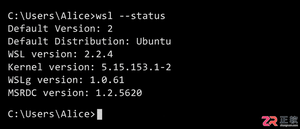
详解Windows环境下安装OpenAI Codex CLI的步骤,包括WSL环境检查、Node.js/npm配置、npm全局安装命令及首次启动验证,适合开发者快速上手。
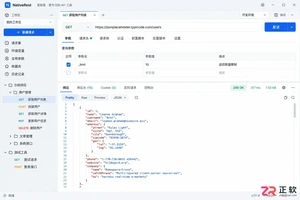
学习如何配置 NativeRest REST API 客户端。涵盖 Windows/macOS/Linux 安装后的工作区创建、环境变量管理、请求编辑及响应查看步骤,帮助开发者快速完成基础环境搭建与连通性测试。
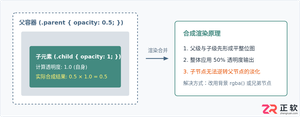
深入解析CSS中设置透明度的核心属性opacity,剖析子元素继承、事件穿透、层叠上下文等关键注意事项,并提供与rgba、hsla的实用选型对比。
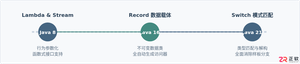
本文通过具体的旧版与新版代码对比,详细剖析Java 8引入的Lambda表达式、Java 14/16引入的Record类,以及Java 12至21逐步演进完善的Switch表达式与模式匹配,展示代码简化路径与避坑要点。
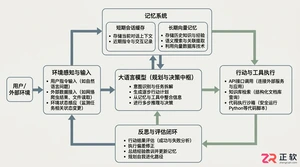
系统梳理AI智能体开发培训的核心知识模块、技术栈选型与典型实战项目,解析低代码平台与纯代码框架的差异,提供从零构建可落地智能体的完整学习与实施路径。
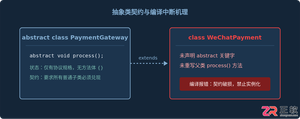
针对Java开发中常见的“子类未实现抽象方法”编译错误,深入分析报错原因,提供重写实现、声明抽象子类两种标准修复路径,并总结参数签名、访问修饰符等典型避坑要点。
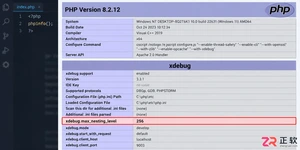
遇到PHP递归报错时,不要盲目调大max_nesting_level。本文教你区分Xdebug限制、内存耗尽和正则递归错误,提供代码级的终止条件优化与迭代替代方案,彻底解决栈溢出问题。
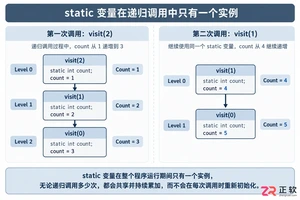
本文分析PHP递归中static变量导致的状态污染及引用传递引发的共享数据修改问题。提供具体的代码复现、缓存键设计建议及调试打印技巧,帮助开发者避免隐蔽的逻辑错误。
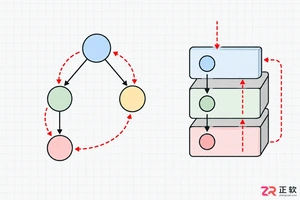
解析PHP递归函数在树形数据处理中的性能瓶颈,提供预加载数据消除I/O、使用显式栈替代深层递归的实战方案,帮助开发者在代码可读性与执行效率间做出合理取舍。




Photoshop 2026 是 Adobe 推出的专业图像处理与视觉设计软件,支持 Windows、macOS 和 iPad 等平台,广泛应用于摄影修图、电商设计、平面海报、数字绘画及视觉合成等创作场景。

Blender 是一款免费开源、跨平台的专业 3D 创作软件,集建模、动画、渲染、视频编辑与视觉合成等功能于一体,广泛应用于影视动画、游戏设计和建筑可视化等领域。软件支持 Cycles 物理渲染器与 Eevee 实时渲染引擎,并提供多边形建模、骨骼绑定、物理模拟等专业工具。Blender 兼容 Windows、macOS 和 Linux 系统,安装包轻巧、运行流畅,依托活跃的全球开发者社区持续更新,是从初学者到专业创作者都值得选择的正版 3D 创作工具。


Photoshop 2026 是 Adobe 推出的专业图像处理与视觉设计软件,支持 Windows、macOS 和 iPad 等平台,广泛应用于摄影修图、电商设计、平面海报、数字绘画及视觉合成等创作场景。
Blender 是一款免费开源、跨平台的专业 3D 创作软件,集建模、动画、渲染、视频编辑与视觉合成等功能于一体,广泛应用于影视动画、游戏设计和建筑可视化等领域。软件支持 Cycles 物理渲染器与 Eevee 实时渲染引擎,并提供多边形建模、骨骼绑定、物理模拟等专业工具。Blender 兼容 Windows、macOS 和 Linux 系统,安装包轻巧、运行流畅,依托活跃的全球开发者社区持续更新,是从初学者到专业创作者都值得选择的正版 3D 创作工具。