

Vue3使用LogicFlow更新节点名称的方法
核心更新方法 1. 使用updateText方法(推荐) 想快速给LogicFlow里的节点改名?最直接高效的办法,就是调用它的updateText方法。你只需要知道节点的ID,然后传入新名字就行。下面这个典型的Vue 3组件示例,清晰地展示了从初始化画布到完成更新的完整流程。 更新节点名称 imp
核心更新方法
1. 使用updateText方法(推荐)
想快速给LogicFlow里的节点改名?最直接高效的办法,就是调用它的updateText方法。你只需要知道节点的ID,然后传入新名字就行。下面这个典型的Vue 3组件示例,清晰地展示了从初始化画布到完成更新的完整流程。
2. 通过setProperties方法更新
如果需求不只是改个名字,还需要同步更新节点的一些其他自定义属性,那么setProperties方法会更合适。它能一次性搞定文本和属性的更新,确保数据状态的一致性。
// 更新节点属性,包括名称
const updateNodeWithProperties = () => {
  if (!selectedNodeId.value) return;

  const newNodeName = '更新后的节点名称';

  // 获取节点当前属性
  const nodeModel = lf.value.getNodeModelById(selectedNodeId.value);
  const currentProperties = nodeModel.properties || {};

  // 更新属性
  lf.value.setProperties(selectedNodeId.value, {
    ...currentProperties,
    nodeName: newNodeName,
    updatedAt: new Date().toISOString()
  });

  // 同时更新显示文本
  lf.value.updateText(selectedNodeId.value, newNodeName);
};
事件监听与交互方式
1. 双击编辑模式
想要更流畅的用户体验?不妨试试双击编辑。通过监听节点的双击事件,可以直接弹出输入框让用户修改,这种交互方式在各类绘图工具中都非常常见。
// 监听双击事件
lf.value.on('node:dblclick', ({ data }) => {
  const currentNode = lf.value.getNodeModelById(data.id);
  const currentText = currentNode.text?.value || '';

  const newText = prompt('编辑节点名称:', currentText);
  if (newText !== null) {
    lf.value.updateText(data.id, newText);
  }
});
2. 右键菜单编辑
对于功能复杂的应用,右键菜单提供了更专业、更集成的操作入口。结合LogicFlow的Menu插件,可以轻松实现一个包含“编辑名称”、“删除”等选项的上下文菜单。
import { Menu } from '@logicflow/extension';
import '@logicflow/extension/lib/style/index.css';

// 初始化时注册菜单插件
lf.value = new LogicFlow({
  container: container.value,
  plugins: [Menu],
});

// 配置右键菜单
lf.value.extension.menu.setMenuConfig({
  nodeMenu: [
    {
      text: '编辑名称',
      callback: (node) => {
        const currentText = node.text || '';
        const newText = prompt('编辑节点名称:', currentText);
        if (newText) {
          lf.value.updateText(node.id, newText);
        }
      }
    },
    {
      text: '删除',
      callback: (node) => {
        lf.value.deleteNode(node.id);
      }
    }
  ]
});
自定义节点名称编辑
当你使用自定义节点时,控制权就更大了。你可以通过重写节点模型中的相关方法,来精确控制名称的显示样式、位置以及初始化逻辑。
import { RectNode, RectNodeModel } from '@logicflow/core';

class CustomNodeModel extends RectNodeModel {
  // 自定义文本样式
  getTextStyle() {
    const style = super.getTextStyle();
    return {
      ...style,
      fontSize: 14,
      fontWeight: 'bold',
      fill: '#1e40af',
    };
  }

  // 初始化节点数据
  initNodeData(data) {
    super.initNodeData(data);
    // 确保文本格式正确
    this.text = {
      x: data.x,
      y: data.y + this.height / 2 + 10,
      value: data.text || '默认节点'
    };
  }
}

// 注册自定义节点
lf.value.register({
  type: 'custom-node',
  view: RectNode,
  model: CustomNodeModel
});
批量更新与高级功能
1. 批量更新多个节点
遇到需要一次性修改大量节点的场景?手动一个一个改显然不现实。这时,获取完整的图形数据,遍历节点数组进行批量处理,然后重新渲染,才是正确的解决思路。
// 批量更新所有节点名称
const batchUpdateNodeNames = () => {
  const graphData = lf.value.getGraphData();
  const updatedNodes = graphData.nodes.map(node => ({
    ...node,
    text: `${node.text}(已更新)`
  }));

  // 重新渲染
  lf.value.render({
    nodes: updatedNodes,
    edges: graphData.edges
  });
};

// 按条件更新节点
const updateNodesByCondition = () => {
  const graphData = lf.value.getGraphData();
  const updatedNodes = graphData.nodes.map(node => {
    if (node.type === 'rect') {
      return {
        ...node,
        text: `矩形节点-${node.id}`
      };
    }
    return node;
  });

  lf.value.render({
    nodes: updatedNodes,
    edges: graphData.edges
  });
};
2. 实时保存与撤销重做
对于生产级应用,数据持久化和操作可追溯性至关重要。监听文本更新事件来自动保存,以及启用历史记录插件来实现撤销重做,这些都是提升应用健壮性和用户体验的关键功能。
// 监听文本变化并自动保存
lf.value.on('node:text-update', ({ data }) => {
  console.log('节点文本已更新:', data);
  sa veToBackend(lf.value.getGraphData());
});

// 实现撤销重做功能
const undo = () => {
  lf.value.undo();
};
const redo = () => {
  lf.value.redo();
};

// 启用历史记录
lf.value = new LogicFlow({
  container: container.value,
  grid: true,
  history: true, // 启用历史记录
  historySize: 100 // 设置历史记录大小
});
注意事项与最佳实践
- 文本对象格式:需要留意,LogicFlow中节点的文本既支持简单的字符串格式,也支持完整的对象格式
{value: '文本', x: 100, y: 100},后者可以精确定位。 - 更新时机:务必确保所有更新操作都在画布调用
lf.render()初始化完成之后进行,否则可能找不到节点实例。 - 错误处理:在更新前进行防御性检查,比如确认节点ID是否存在,可以避免很多运行时错误。
- 性能优化:在执行批量更新等可能频繁触发的操作时,考虑使用防抖(debounce)来避免不必要的性能损耗。
下面这个安全更新函数,融合了上述几点实践,可以作为参考模板:
// 安全的更新函数
const safeUpdateNodeName = (nodeId, newName) => {
  if (!lf.value) {
    console.error('LogicFlow 实例未初始化');
    return false;
  }

  const nodeModel = lf.value.getNodeModelById(nodeId);
  if (!nodeModel) {
    console.error(`节点 ${nodeId} 不存在`);
    return false;
  }

  try {
    lf.value.updateText(nodeId, newName);
    return true;
  } catch (error) {
    console.error('更新节点名称失败:', error);
    return false;
  }
};
从简单的单点更新到复杂的批量操作与集成功能,上面介绍的这些方法基本覆盖了在Vue 3项目中操作LogicFlow节点名称的各类场景。实际开发时,根据具体的交互复杂度和功能需求,灵活选择或组合使用即可。

针对大数据工程场景,系统对比Java、Scala与Python在执行性能、生态结合、开发效率和维护成本上的核心差异,给出清晰的架构选型依据与落地方案。
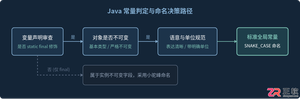
深入解析Java常量命名标准、大写下划线语义规则,剖析接口常量反模式的危害与本质原因,并提供枚举、不可实例化常量工具类等工业级最佳替代方案。
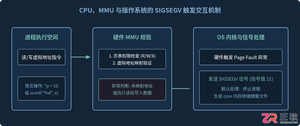
针对C语言常见的段错误(Segmentation fault)问题,详细剖析内存非法访问根因,提供结合GDB、Core Dump与AddressSanitizer的标准化排查解决步骤与预防方法。
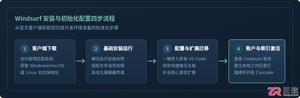
本文提供全面的Windsurf开发工具安装与使用详细教程,覆盖客户端下载安装、环境配置与VS Code插件迁移、Cascade核心协作中枢使用技巧、Chat与Write双模式实战及高效开发规范。
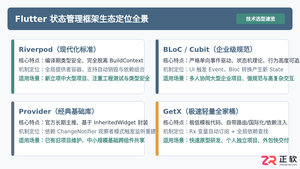
全面盘点Flutter主流状态管理框架,深度解析Provider、Riverpod、Bloc与GetX的核心机制、优缺点及适用场景,提供系统化的状态管理选型指南。
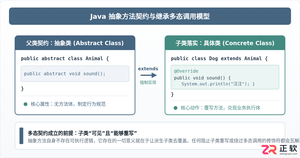
深入剖析Java中抽象方法为何严禁使用private和static修饰符。从面向对象契约规范、方法继承重写、JVM动态绑定(invokevirtual)与静态解析(invokestatic)等底层机制展开详细推导,结合编译报错示例与全景对比,彻底理清修饰符限制背后的设计逻辑。

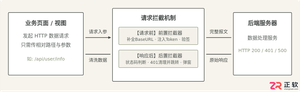
详细讲解uni-app中网络请求拦截的配置方法与实现路径,包含uni.addInterceptor原生API拦截与Promise二次封装方案、Token注入、全局错误处理及踩坑提醒。
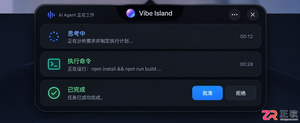
Vibe Island支持独立于macOS系统的语言设置。本文详解如何在Settings > General中将界面切换为简体中文,并验证Agent会话、审批按钮等核心功能的中文显示效果。





IntelliJ IDEA 是 JetBrains 推出的专业集成开发环境,重点服务于 Java、Kotlin 与 JVM 项目开发。软件集成代码补全、静态检查、重构、调试、测试、版本控制及构建工具,并可借助插件扩展语言和框架支持。

JetBrains PyCharm 是面向 Python 开发者的集成开发环境,提供智能补全、代码检查、重构、调试、测试、版本控制及虚拟环境管理功能。Mac 版兼容 Intel 与 Apple 芯片,核心功能可免费使用。

JetBrains WebStorm 是面向 JavaScript、TypeScript 和现代 Web 技术的专业集成开发环境,可智能理解项目结构,提供代码补全、重构、错误检查、运行调试、测试及 Git 工具。

JetBrains IntelliJ IDEA 是以 Java、Kotlin 和 JVM 项目为核心的专业集成开发环境,提供智能补全、代码检查、安全重构、调试、测试、版本控制及构建工具集成。统一发行版的核心功能可免费用于商业和非商业项目,

PhpStorm 是 JetBrains 面向 PHP 与现代 Web 开发打造的专业集成开发环境,提供代码补全、静态检查、重构、调试、测试、数据库、版本控制及前端语言支持。Windows 用户可直接下载安装程序,

PyCharm 是 JetBrains 推出的 Python 集成开发环境,提供智能代码补全、错误检查、重构、调试、测试、Git、终端及 Jupyter Notebook 支持。统一版安装后可体验 30 天 Pro 功能,


