

Source Insight添加注释的步骤如下:打开 Source Insight,加载你的项目文件。在代码编辑窗口中,将光标定位到需要添加注释的位置。按下 C
SourceInsight是一款高效的代码编辑与分析工具,为开发者提供了便捷的开发环境,通过清晰的导航结构和快速的代码解析能力,显著提升代码理解与维护效率。该工具支持创建项目以集中管理相关代码文件,并可在项目内进行文件编辑、注释添加、内容搜索及代码分析等操作。其强大的注释功能有助于开发者迅速定位并修改代码段,从而有效降低后期维护成本。那么,如何在SourceInsight中添加注释?以下是具体的操作方法:一、首先,在SourceInsight安装目录下的路径C:SourceInsight4.0P
Source Insight是一款高效的代码编辑与分析工具,为开发者提供了便捷的开发环境,通过清晰的导航结构和快速的代码解析能力,显著提升代码理解与维护效率。该工具支持创建项目以集中管理相关代码文件,并可在项目内进行文件编辑、注释添加、内容搜索及代码分析等操作。其强大的注释功能有助于开发者迅速定位并修改代码段,从而有效降低后期维护成本。
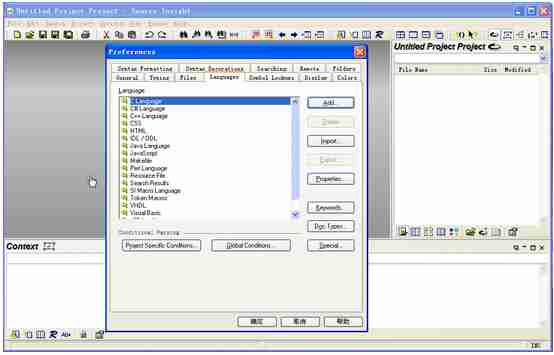
那么,如何在Source Insight中添加注释?以下是具体的操作方法:
一、首先,在Source Insight安装目录下的路径C:Source Insight 4.0ProjectsBase中新建一个名为custom.em的文件,用于编写用户自定义的宏函数。
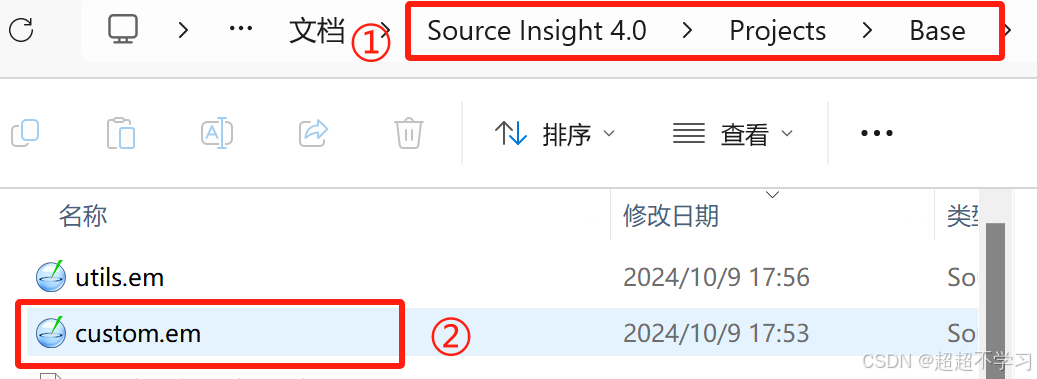
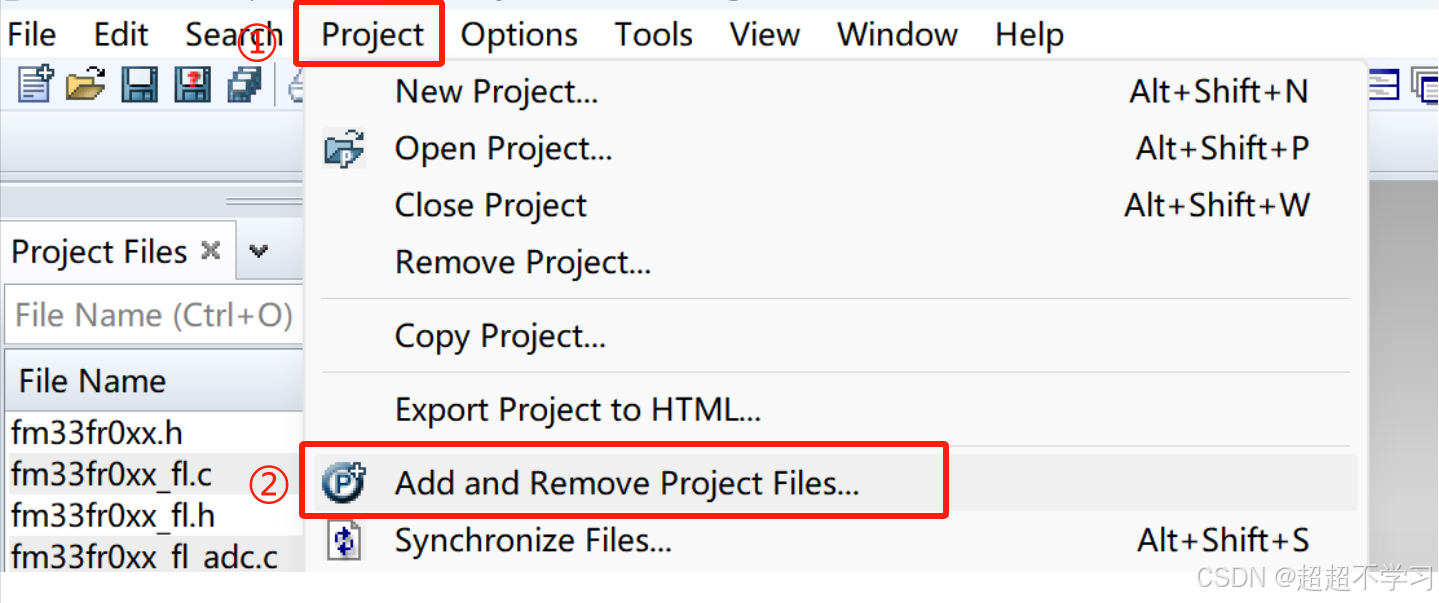
二、将custom.em文件加入到当前工程中
1、选择菜单栏中的Project→Add and Remove Project Files...
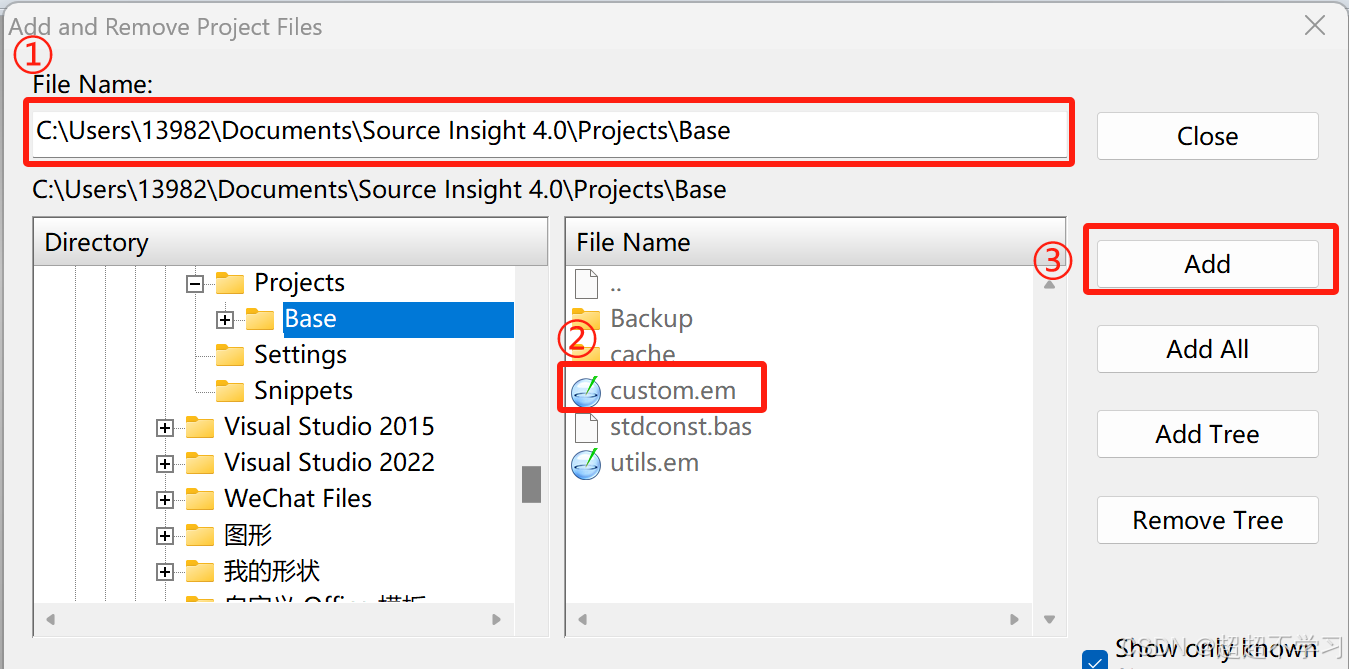
2、在“File Name:”输入框中粘贴custom.em文件的完整路径,按回车进入Base目录,选中custom.em文件后点击Add按钮,随后关闭窗口,完成文件导入。
三、开始编写自定义注释函数
1、实现文件头部注释功能
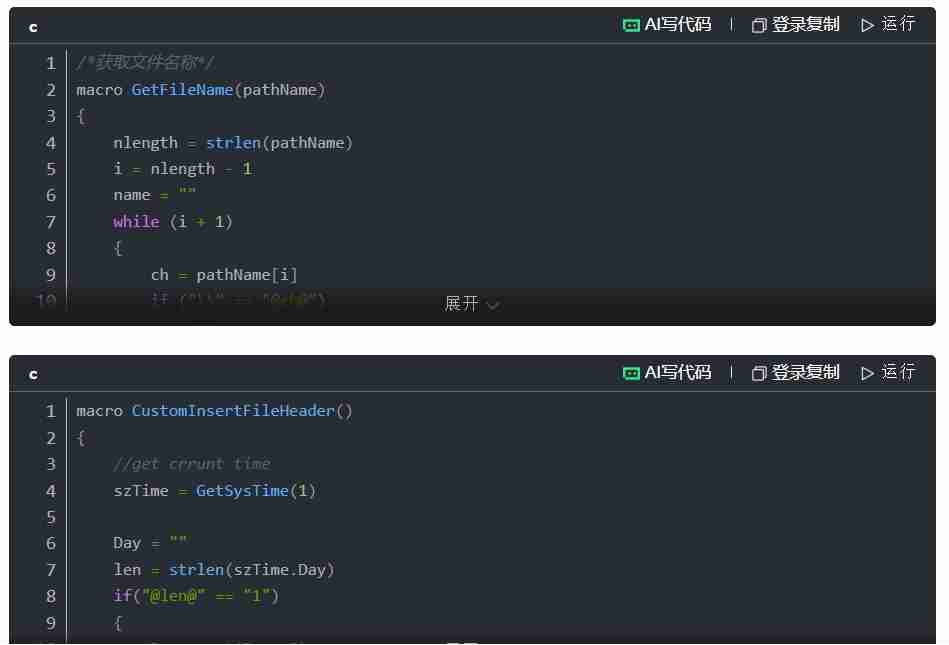
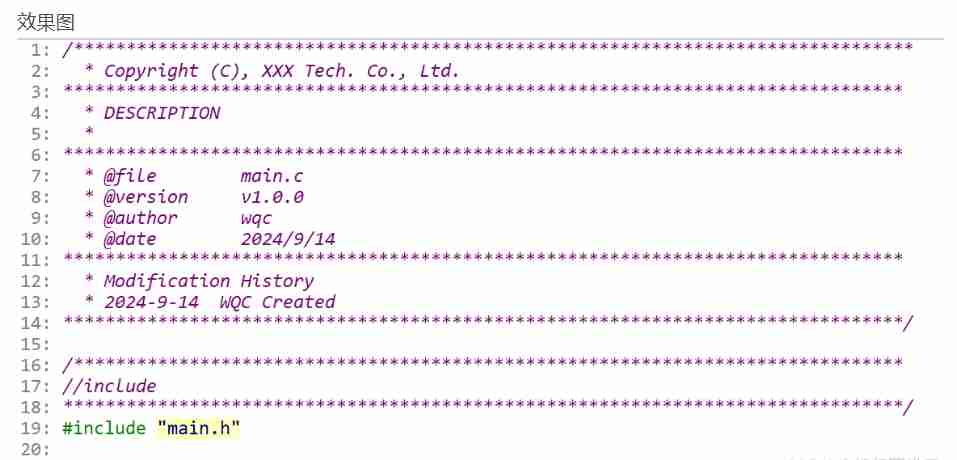
2、实现函数定义处的注释插入
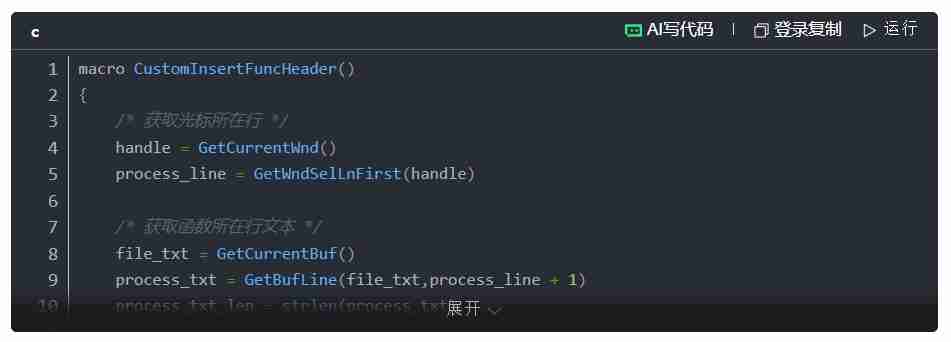
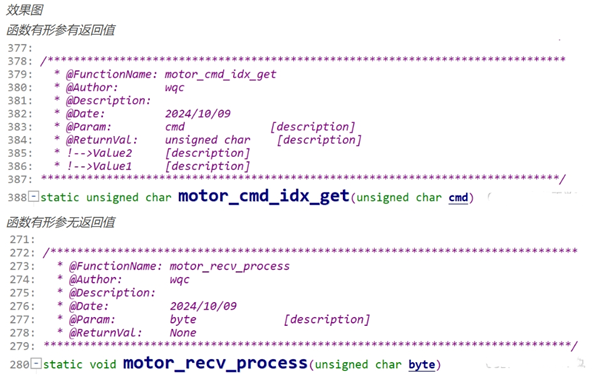
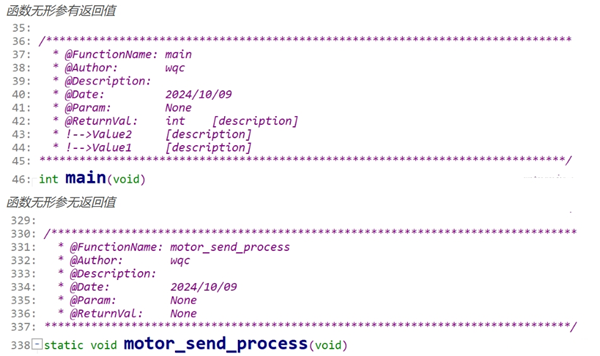
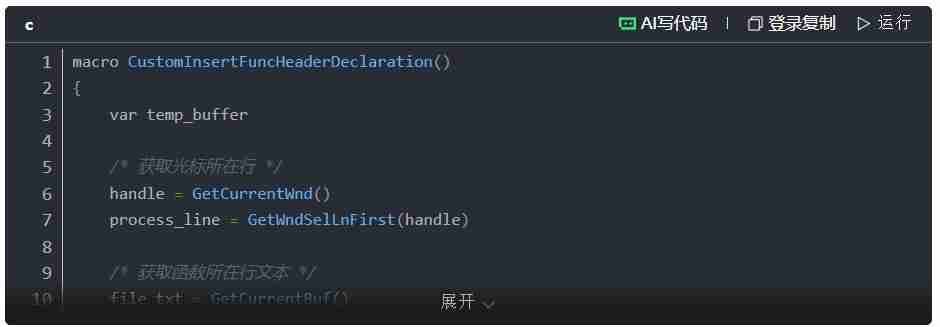
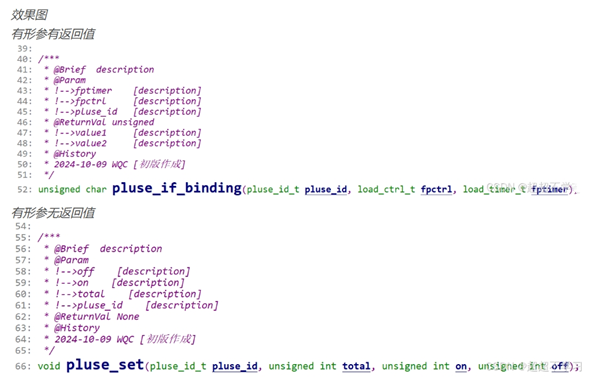
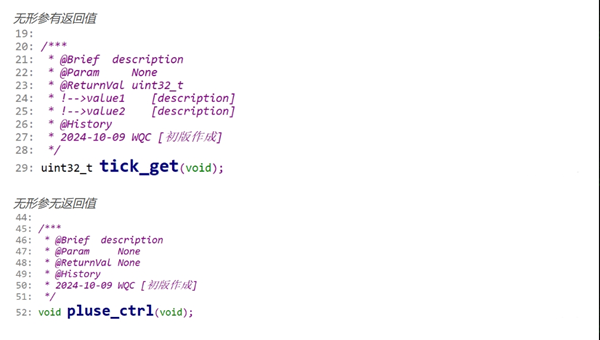
3、实现函数声明位置的注释生成
四、为自定义函数设置快捷键
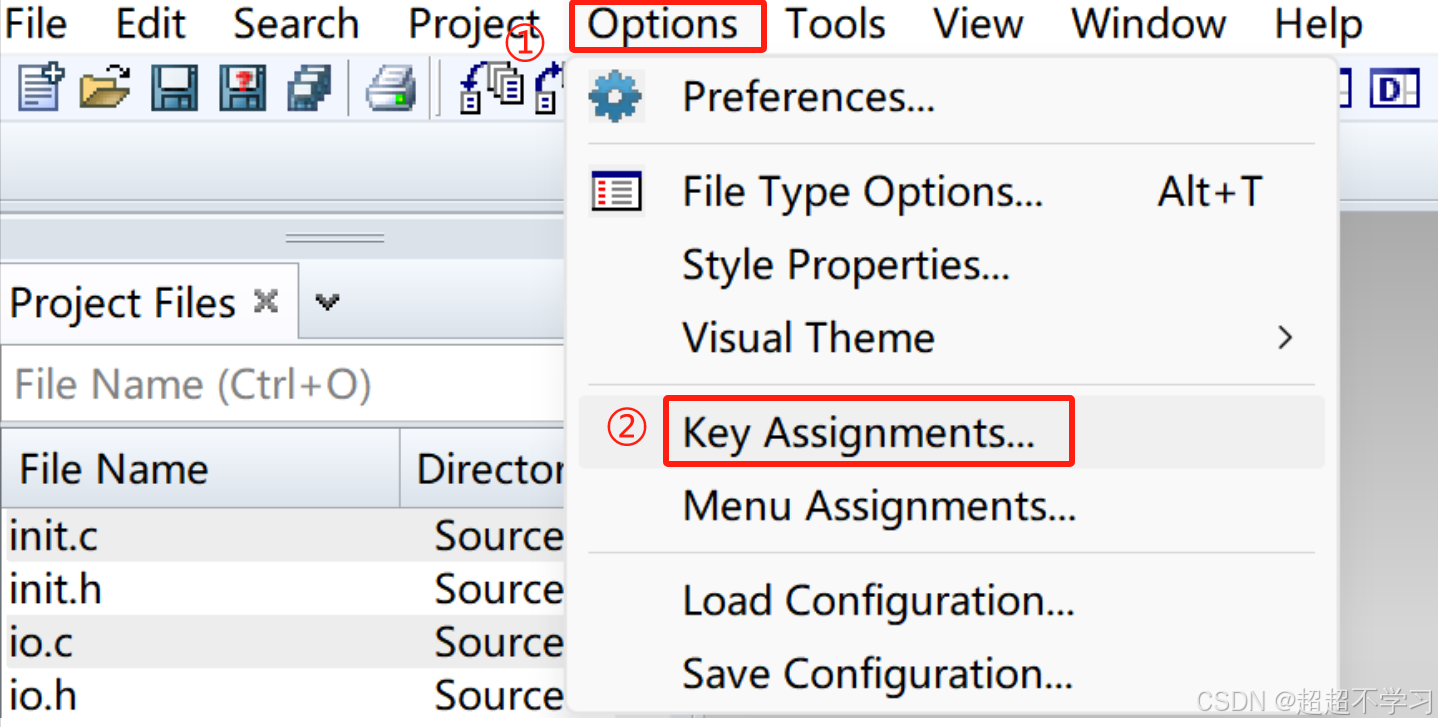
1、进入Options→Key Assignments...
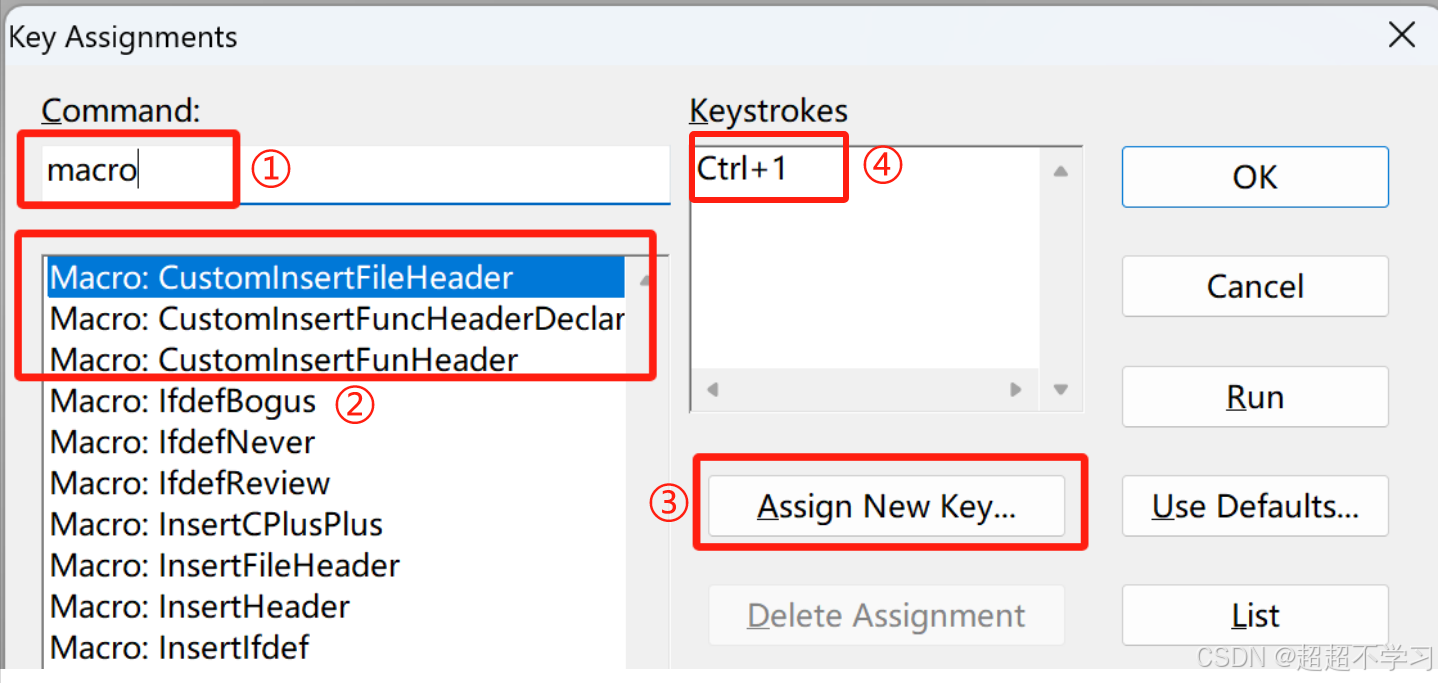
2、在Command搜索框中输入macro,查找已定义的宏函数,选中目标函数后点击Assign New Key...,然后按下所需快捷键组合即可完成绑定。
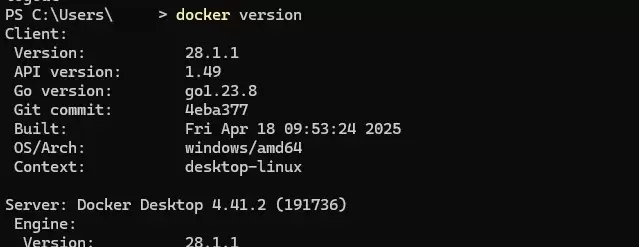
本文提供Windows环境下安装Docker Desktop的完整步骤,重点在于启用WSL2后端及验证容器运行。通过PowerShell执行docker version确认客户端与服务端连通,并运行hello-world测试镜像完成基础环境搭建。
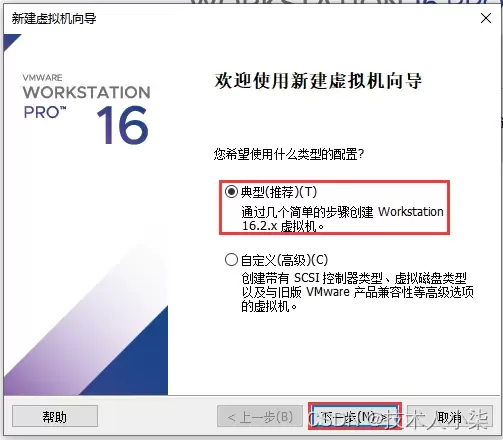
本文详细讲解如何在VMware Workstation中从零开始安装CentOS 7虚拟机。内容涵盖ISO镜像准备、典型配置创建、硬件参数分配(磁盘与内存)、安装器操作及首次启动后的版本与网络验证。通过规范化的步骤指引,帮助读者快速搭建稳定可用的Linux学习环境,并解决常见的启动与网络故障。
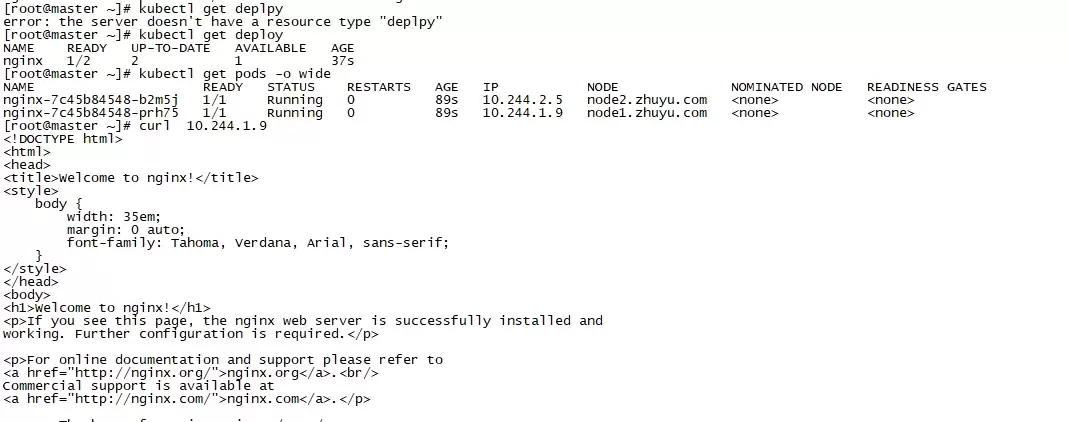
本文指导使用 kubectl 创建最小 nginx Deployment,并通过 READY、UP-TO-DATE、AVAILABLE 与 Pod Running 状态进行验收。重点区分“命令已接收”和“工作负载已可用”,并在状态异常时利用 Pod 详情与事件输出定位镜像、调度或启动问题。
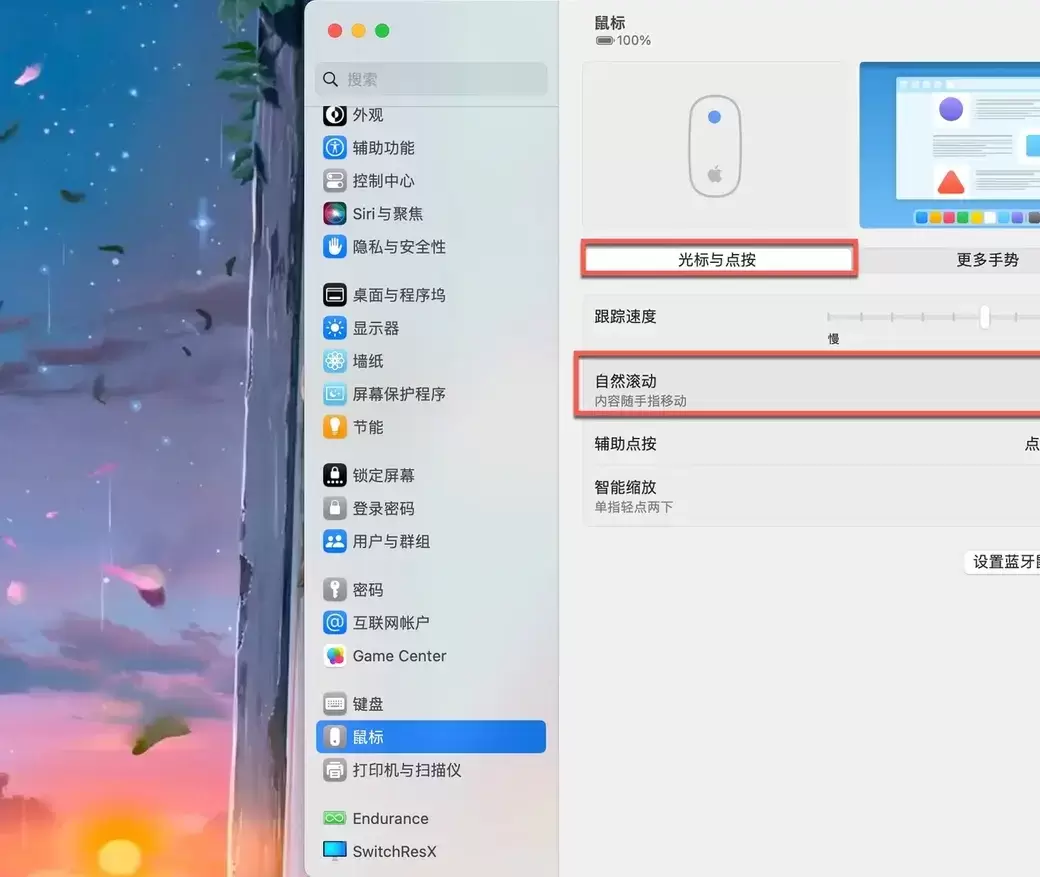
Mac外接鼠标滚动方向与触控板不一致时,可通过系统设置中的“自然滚动”开关调整。本文详解如何进入鼠标设置页面、切换滚动逻辑,并提供鼠标与触控板方向分离的第三方工具方案,解决滚轮手感不适及多设备冲突问题。
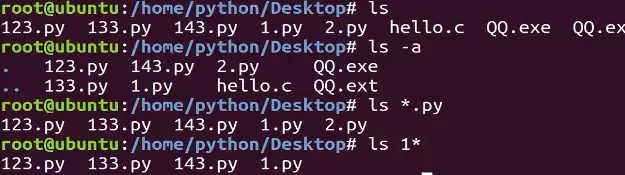
本教程指导Ubuntu新手打开终端,通过pwd、ls、cd、mkdir和touch命令完成基础文件目录操作。适用于桌面版、虚拟机及WSL环境,提供从查看路径到创建测试文件的完整验证步骤,帮助读者建立命令行操作的安全意识与正确习惯。
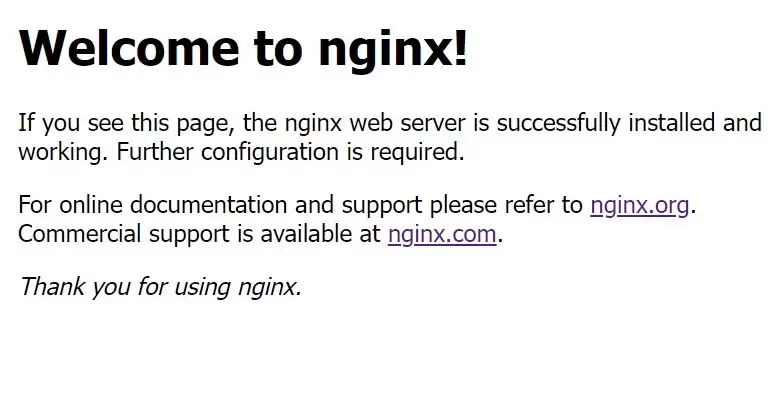
本教程针对Windows环境,详解Nginx稳定版(如1.24.0)的下载、解压、启动及验证流程。核心步骤包括:下载官方压缩包至英文目录,使用start nginx启动,通过localhost访问默认页面,并利用tasklist和nginx -t命令确认进程状态及配置语法。涵盖端口冲突排查、配置重载及停止服务的标准操作,适用于本地开发环境搭建与基础运维验证。
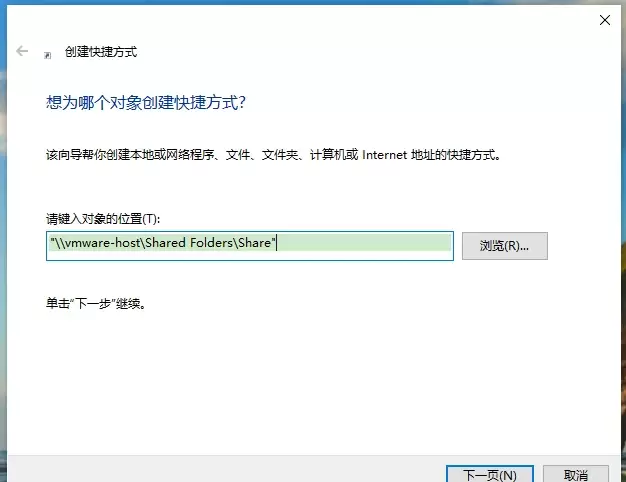
本文提供VMware虚拟机共享文件夹的配置与验证方法。核心步骤包括:确保VMware Tools已安装,在虚拟机设置中启用共享文件夹并添加主机目录,最后通过读写测试文件确认传输正常。适用于Windows及Linux虚拟机,旨在解决主机与虚拟机间文件交换问题。
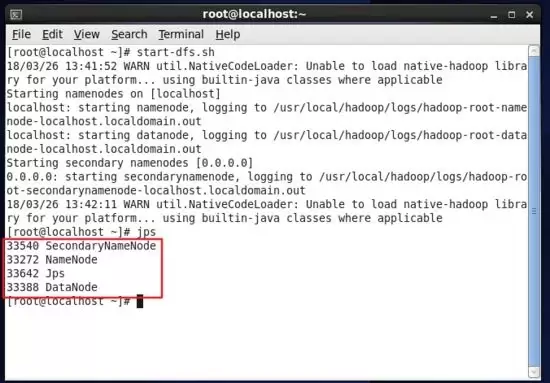
本教程指导大数据分析师在Linux环境中安装Hadoop,通过配置环境变量、验证版本及启动服务,确保Java和Hadoop命令可用。最终利用jps命令检查NameNode等核心进程状态,为后续学习HDFS和Spark打下基础。
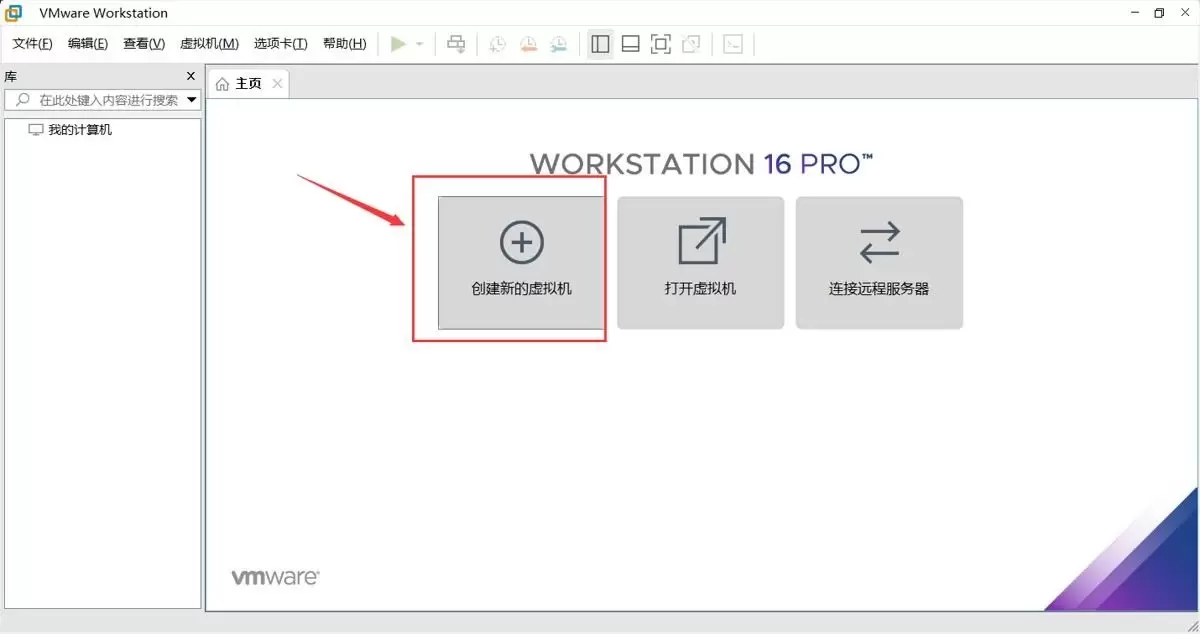
本文提供在VMware中安装Ubuntu并验证启动的完整流程。适用于首次练习Linux或搭建开发环境的用户。按步骤完成虚拟机创建、ISO挂载、硬件分配与安装后,可通过终端命令确认版本、内核与网络状态,确保系统可正常使用。
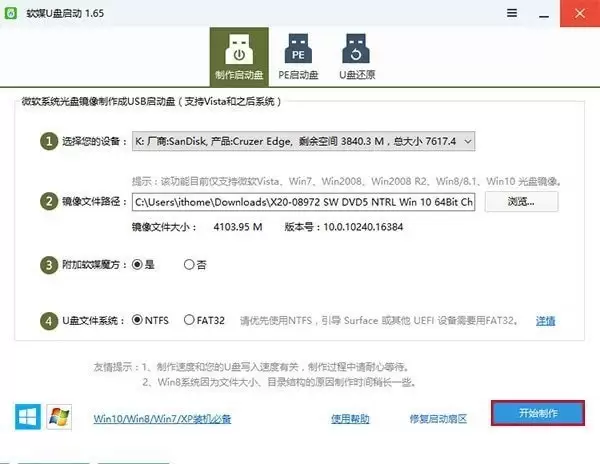
本文提供从准备镜像到完成安装的完整链路。需准备8GB以上U盘与官方镜像,制作启动盘会清空U盘数据。通过F12等快捷键或BIOS设置从U盘启动,安装时选择专业版并谨慎分区。完成后在“设置—系统—关于”验证版本,并检查激活与驱动状态。






Windows 10 是一款微软推出的经典操作系统,拥有硬件兼容性与多任务处理能力。它更偏向把系统状态查看和常用调节动作放在一起,适合需要持续观察和微调设备状态的场景。

极度公式是一款跨平台专业LaTeX公式识别编辑软件,支持OCR公式识别和多平台编辑。和使用说明,避免使用,享受完整功能与稳定支持。做扫描整理、文字提取和表格转换时,它能把识别后的处理步骤接得更顺,资料录入这类场景会省下不少时间。