

SyntaxHighlighter配合CKEditor插件轻松打造代码语法着色
基于3.0.83版SyntaxHighlighter与3.5.3版CKEditor,整理了一套代码语法着色集成方案。在CKEditor中开发insertcode插件,通过配置config.js添加工具栏按钮,实现在页面中插入代码并高亮显示,支持多种编程语言,提升代码可读性。
在网上搜索相关教程,发现不少文章大同小异。很多开发者选择使用SyntaxHighlighter配合CKEditor插件来实现代码语法着色。不过由于版本差异,实际操作中可能会遇到一些问题。本文基于3.0.83版SyntaxHighlighter和3.5.3版CKEditor,整理了一套可行的集成方案,供参考。

一、SyntaxHighlighter简介
SyntaxHighlighter(原名:dp.SyntaxHighlighter)是一套在浏览器上对各种代码进行语法着色的Ja vaScript库。官方下载地址:http://alexgorbatchev.com/SyntaxHighlighter/。本文使用的版本是3.0.83版,下载后只需要syntaxhighlighter文件夹下的“scripts”和“styles”文件夹内的文件即可。
在代码语法着色高亮显示的页面中,需要引用“styles/shCore.css”样式文件和“scripts/shCore.js”JS文件。由于每一种代码语言都要引用各自的JS文件,为了降低HTTP请求,可以把所有代码语言的JS文件内容合并到一个“scripts/shBrushSeaYee.js”文件里,并优化成一行。例如:
复制代码
代码如下:
二、CKEditor简介
CKEditor是一个专门使用在网页上的开源所见即所得文字编辑器。它追求轻量化,安装步骤简单,可和PHP、Ja vaScript、ASP、ASP.NET、ColdFusion、Ja va、ABAP等不同编程语言结合。它原名FCKEditor,2009年发布3.0版本后改名为CKEditor。原来叫FCK是因为最初的开发者叫Frederico Calderia Knabben;现在叫CK,意指“Content and Knowledge”。官方下载地址:http://ckeditor.com/。本文使用的版本是3.5.3版,安装配置都比较简单,不再赘述。
三、CKEditor代码语法着色高亮显示的插件开发
1、在“ckeditor\plugins\”目录下新建“insertcode”目录
在“insertcode”目录下新建一个“plugin.js”,输入以下代码:
复制代码
代码如下:
CKEDITOR.plugins.add('insertcode',
{
init: function(editor)
{
//plugin code goes here
var pluginName = 'Insertcode';
CKEDITOR.dialog.add(pluginName, this.path + 'insertcode.js');
editor.config.flv_path = editor.config.flv_path || (this.path);
editor.addCommand(pluginName, new CKEDITOR.dialogCommand(pluginName));
editor.ui.addButton('Insertcode',
{
label: '代码',
command: pluginName,
icon: this.path + 'insertcode.gif'
});
}
});
注意:第1行代码中的“insertcode”必须与文件夹名称相同且区分大小写字母,因为在Linux系统的Web服务器中,路径区分大小写。
2、放入图标文件
在“insertcode”目录下放入一个“insertcode.gif”16×16的图片,可以自己制作或从网上查找。
3、新建“insertcode.js”文件
在“insertcode”目录下新建一个“insertcode.js”,输入如下代码:
复制代码
代码如下:
CKEDITOR.dialog.add('Insertcode', function(editor){
var escape = function(value){return value;};
return{
title: '代码',
resizable: CKEDITOR.DIALOG_RESIZE_BOTH,
minWidth: 720,
minHeight: 520,
contents: [{
id: 'cb',
name: 'cb',
label: 'cb',
title: 'cb',
elements: [{
type: 'select',
label: 'Language',
id: 'lang',
required: true,
'default': 'csharp',
items: [['ActionScript3', 'as3'], ['Bash/shell', 'bash'], ['ColdFusion', 'cf'], ['C#', 'csharp'], ['C++', 'cpp'], ['CSS', 'css'], ['Delphi', 'delphi'], ['Diff', 'diff'], ['Groovy', 'groovy'], ['Ja vaScript', 'js'], ['Ja va', 'ja va'], ['Ja vaFX', 'jfx'], ['Perl', 'perl'], ['PHP', 'php'], ['Plain Text', 'plain'], ['PowerShell', 'ps'], ['Python', 'py'], ['Ruby', 'rails'], ['Scala', 'scala'], ['SQL', 'sql'], ['Visual Basic', 'vb'], ['XML', 'xml']]
}, {
type: 'textarea',
style: 'width:718px;height:450px',
label: 'Code',
id: 'code',
rows: 31,
'default': ''
}]
}],
onOk: function(){
code = this.getValueOf('cb', 'code');
lang = this.getValueOf('cb', 'lang');
html = '' + escape(code) + '';
editor.insertHtml("
" + html + "");
},
onLoad: function(){}
};
});
4、配置CKEditor的config.js
在“ckeditor\”目录下找到“config.js”文件,添加如下代码:
复制代码
代码如下:
config.extraPlugins = 'insertcode';
注意:代码中的“insertcode”也必须与文件夹名称相同,区分大小写字母。要在CKEditor工具栏添加按钮,就在此配置文件中添加上“,Insertcode”即可,同样注意大小写。至此,插件配置完成。
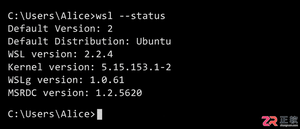
详解Windows环境下安装OpenAI Codex CLI的步骤,包括WSL环境检查、Node.js/npm配置、npm全局安装命令及首次启动验证,适合开发者快速上手。
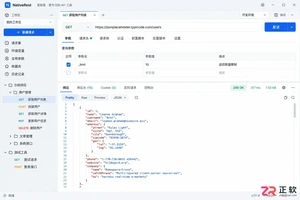
学习如何配置 NativeRest REST API 客户端。涵盖 Windows/macOS/Linux 安装后的工作区创建、环境变量管理、请求编辑及响应查看步骤,帮助开发者快速完成基础环境搭建与连通性测试。
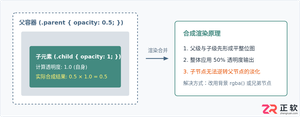
深入解析CSS中设置透明度的核心属性opacity,剖析子元素继承、事件穿透、层叠上下文等关键注意事项,并提供与rgba、hsla的实用选型对比。
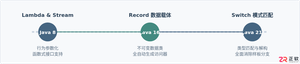
本文通过具体的旧版与新版代码对比,详细剖析Java 8引入的Lambda表达式、Java 14/16引入的Record类,以及Java 12至21逐步演进完善的Switch表达式与模式匹配,展示代码简化路径与避坑要点。
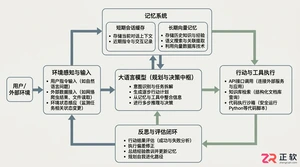
系统梳理AI智能体开发培训的核心知识模块、技术栈选型与典型实战项目,解析低代码平台与纯代码框架的差异,提供从零构建可落地智能体的完整学习与实施路径。
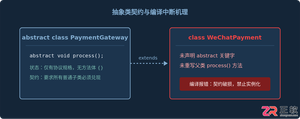
针对Java开发中常见的“子类未实现抽象方法”编译错误,深入分析报错原因,提供重写实现、声明抽象子类两种标准修复路径,并总结参数签名、访问修饰符等典型避坑要点。
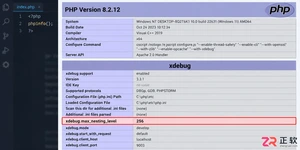
遇到PHP递归报错时,不要盲目调大max_nesting_level。本文教你区分Xdebug限制、内存耗尽和正则递归错误,提供代码级的终止条件优化与迭代替代方案,彻底解决栈溢出问题。
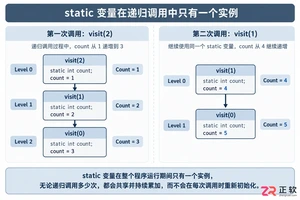
本文分析PHP递归中static变量导致的状态污染及引用传递引发的共享数据修改问题。提供具体的代码复现、缓存键设计建议及调试打印技巧,帮助开发者避免隐蔽的逻辑错误。
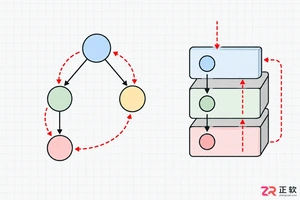
解析PHP递归函数在树形数据处理中的性能瓶颈,提供预加载数据消除I/O、使用显式栈替代深层递归的实战方案,帮助开发者在代码可读性与执行效率间做出合理取舍。




Photoshop 2026 是 Adobe 推出的专业图像处理与视觉设计软件,支持 Windows、macOS 和 iPad 等平台,广泛应用于摄影修图、电商设计、平面海报、数字绘画及视觉合成等创作场景。

Blender 是一款免费开源、跨平台的专业 3D 创作软件,集建模、动画、渲染、视频编辑与视觉合成等功能于一体,广泛应用于影视动画、游戏设计和建筑可视化等领域。软件支持 Cycles 物理渲染器与 Eevee 实时渲染引擎,并提供多边形建模、骨骼绑定、物理模拟等专业工具。Blender 兼容 Windows、macOS 和 Linux 系统,安装包轻巧、运行流畅,依托活跃的全球开发者社区持续更新,是从初学者到专业创作者都值得选择的正版 3D 创作工具。


Photoshop 2026 是 Adobe 推出的专业图像处理与视觉设计软件,支持 Windows、macOS 和 iPad 等平台,广泛应用于摄影修图、电商设计、平面海报、数字绘画及视觉合成等创作场景。
Blender 是一款免费开源、跨平台的专业 3D 创作软件,集建模、动画、渲染、视频编辑与视觉合成等功能于一体,广泛应用于影视动画、游戏设计和建筑可视化等领域。软件支持 Cycles 物理渲染器与 Eevee 实时渲染引擎,并提供多边形建模、骨骼绑定、物理模拟等专业工具。Blender 兼容 Windows、macOS 和 Linux 系统,安装包轻巧、运行流畅,依托活跃的全球开发者社区持续更新,是从初学者到专业创作者都值得选择的正版 3D 创作工具。