

Python搭建自动化报告系统:Jinja2生成PDF教程
使用Python构建自动化报告系统需整合数据处理、模板设计与报告生成流程;2.通过Pandas从数据库等源读取并清洗数据,利用Jinja2模板引擎渲染包含动态数据的HTML报告;3.采用WeasyPrint等库将HTML转为PDF实现报告输出;4.针对大数据量,应实施分批处理、生成器、数据库优化或异步任务以提升性能;5.可通过Matplotlib生成图表并嵌入HTML模板增强可视化;6.利用cron、任务计划程序或schedule库实现定时自动生成报告,确保系统持续稳定运行并监控任务状态,最终完成自动化报
使用Python构建自动化报告系统需整合数据处理、模板设计与报告生成流程;2. 通过Pandas从数据库等源读取并清洗数据,利用Jinja2模板引擎渲染包含动态数据的HTML报告;3. 采用WeasyPrint等库将HTML转为PDF实现报告输出;4. 针对大数据量,应实施分批处理、生成器、数据库优化或异步任务以提升性能;5. 可通过Matplotlib生成图表并嵌入HTML模板增强可视化;6. 利用cron、任务计划程序或schedule库实现定时自动生成报告,确保系统持续稳定运行并监控任务状态,最终完成自动化报告系统的搭建。

使用 Python 构建自动化报告系统,核心在于将数据处理、报告模板和报告生成流程整合起来。Jinja2 负责模板渲染,PDF 库(如 ReportLab)负责生成最终的 PDF 报告。
解决方案
数据获取与处理: 首先,你需要从各种数据源(数据库、API、CSV 文件等)获取数据。Pandas 是一个强大的数据处理库,可以方便地读取、清洗、转换数据。
import pandas as pd
import sqlite3

# 从 SQLite 数据库读取数据
conn = sqlite3.connect('your_database.db')
query = "SELECT * FROM sales_data WHERE date BETWEEN '2023-01-01' AND '2023-01-31'"
df = pd.read_sql_query(query, conn)
conn.close()

# 数据清洗与转换
df['date'] = pd.to_datetime(df['date'])
df['revenue'] = df['sales'] * df['price']
Jinja2 模板设计: 使用 Jinja2 创建报告模板。模板中可以使用变量和控制结构,根据数据动态生成报告内容。
    Monthly Sales Report


    Monthly Sales Report for {{ month }}
    Generated on {{ report_date }}

    Sales Summary
Product Sales Revenue {{ item.product }} {{ item.sales }} {{ item.revenue }} Total Revenue: {{ total_revenue }}
模板渲染: 将数据传递给 Jinja2 模板,生成 HTML 报告。
from jinja2 import Environment, FileSystemLoader
from datetime import datetime

# 准备数据
sales_summary = [
    {'product': 'Product A', 'sales': 100, 'revenue': 1000},
    {'product': 'Product B', 'sales': 50, 'revenue': 750},
]
total_revenue = sum(item['revenue'] for item in sales_summary)

# 加载 Jinja2 模板
env = Environment(loader=FileSystemLoader('.'))  # 模板文件所在的目录
template = env.get_template('report_template.html')

# 渲染模板
html_report = template.render(
    month='January',
    report_date=datetime.now().strftime('%Y-%m-%d'),
    sales_summary=sales_summary,
    total_revenue=total_revenue
)
HTML 转 PDF: 使用 PDF 库将生成的 HTML 报告转换为 PDF 文件。ReportLab 是一个常用的选择,也可以使用 WeasyPrint 或 pdfkit (依赖 wkhtmltopdf)。
from weasyprint import HTML

# 使用 WeasyPrint
HTML(string=html_report).write_pdf('monthly_sales_report.pdf')
如何处理数据量大的情况?
如果数据量很大,直接将所有数据加载到内存中进行处理可能会导致性能问题。可以考虑以下策略:
- 分批处理: 将数据分成小批量进行处理,例如按日期范围分批查询数据库,然后逐批生成报告片段。
- 使用生成器: 使用 Python 的生成器来逐行处理数据,避免一次性加载所有数据到内存。
- 数据库优化: 优化数据库查询语句,使用索引、分区等技术来提高查询效率。
- 异步处理: 使用异步任务队列(如 Celery)来异步生成报告,避免阻塞主线程。
- 数据聚合: 在数据库层面进行数据聚合,只将聚合后的结果用于生成报告。
如何添加图表到报告中?
图表可以有效提升报告的可读性。可以使用 Matplotlib、Seaborn 或 Plotly 等库生成图表,然后将图表嵌入到 HTML 报告中。
生成图表: 使用 Matplotlib 或其他库生成图表,并将图表保存为图片文件(例如 PNG 或 SVG 格式)。
import matplotlib.pyplot as plt

# 示例数据
categories = ['Product A', 'Product B', 'Product C']
sales = [100, 50, 75]

# 创建柱状图
plt.bar(categories, sales)
plt.xlabel('Product')
plt.ylabel('Sales')
plt.title('Sales by Product')
plt.savefig('sales_chart.png') # 保存图表为文件
plt.close() # 释放资源
在 Jinja2 模板中引用图表: 在 Jinja2 模板中使用
    Monthly Sales Report


    Monthly Sales Report for {{ month }}
    Generated on {{ report_date }}

    Sales Chart

HTML 转 PDF: 在将 HTML 转换为 PDF 时,确保 PDF 库能够正确处理图片。WeasyPrint 通常能够很好地处理图片。
如何定时自动生成报告?
为了实现自动化,你需要一个定时任务调度器来定期运行报告生成脚本。
操作系统自带的定时任务: 可以使用 Linux 的
cron或 Windows 的 "任务计划程序" 来设置定时任务。Cron (Linux):
# 编辑 crontab 文件
crontab -e

# 添加一行,每天凌晨 3 点运行报告生成脚本
0 3 * * * /usr/bin/python /path/to/your/report_generator.py
任务计划程序 (Windows): 在 Windows 搜索栏中搜索 "任务计划程序",然后创建一个新的基本任务,指定触发器(例如每天凌晨 3 点)和操作(运行 Python 脚本)。
使用第三方库: 可以使用
schedule库在 Python 脚本中定义定时任务。import schedule import time def generate_report(): # 报告生成代码 print("Generating report...") schedule.every().day.at("03:00").do(generate_report) while True: schedule.run_pending() time.sleep(60) # 每分钟检查一次这种方法需要在服务器上保持脚本运行,可以使用
nohup命令在后台运行脚本 (Linux)。使用专业的任务队列: 使用 Celery 或 RQ 等任务队列,将报告生成任务放入队列中,由 Worker 进程异步执行。这种方法可以更好地处理高并发和复杂的任务依赖关系。
无论选择哪种方法,都需要确保服务器有足够的资源来运行报告生成脚本,并且需要监控任务的执行情况,及时发现和解决问题。
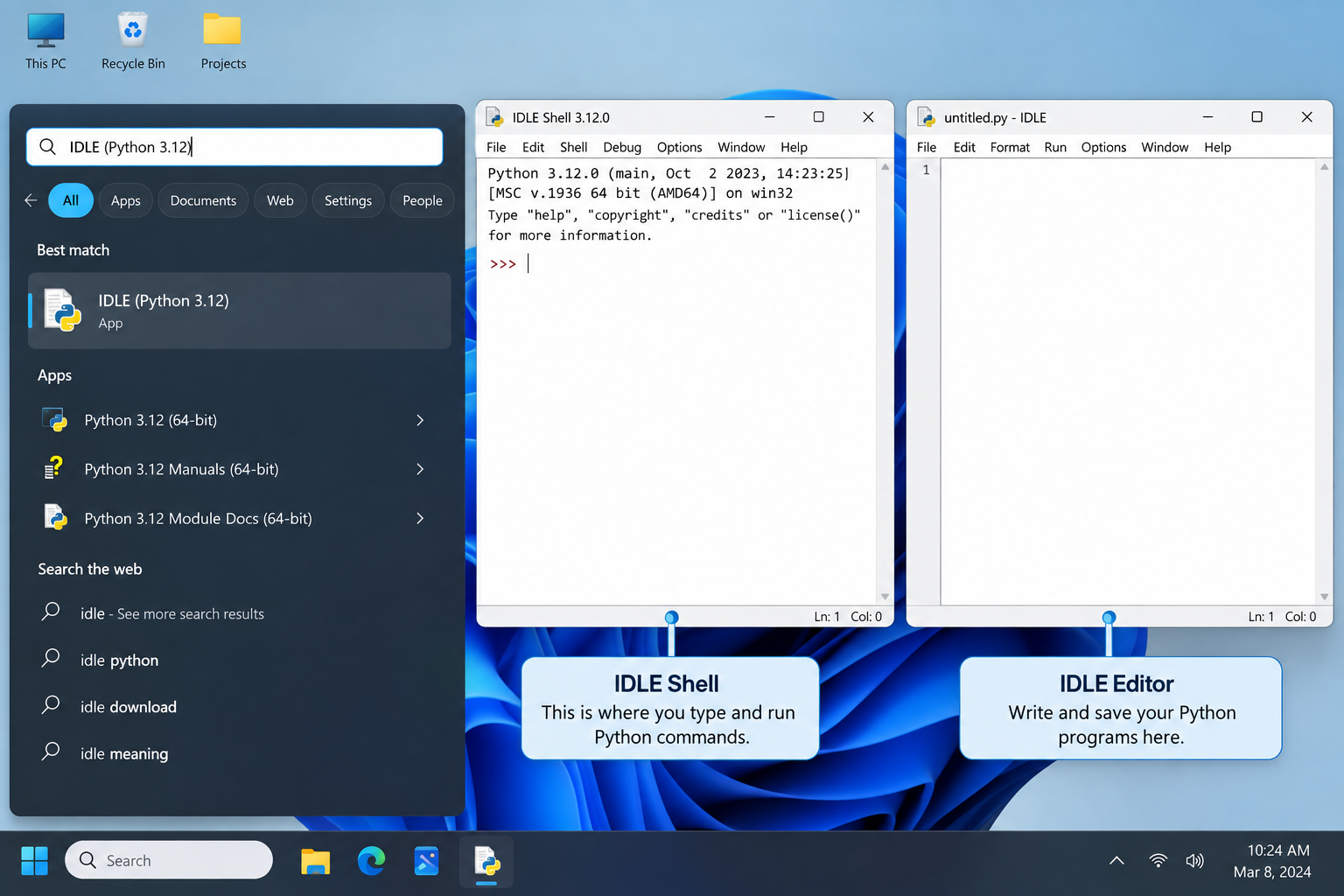
刚在Windows安装好Python却不知道如何启动?本文详细演示如何通过开始菜单找到并打开IDLE集成开发环境,以及如何在PowerShell或命令提示符中使用python和py命令启动交互式解释器、运行.py脚本文件。包含退出解释器的方法及常见启动问题排查,帮助初学者快速验证安装成功并开始编写代码。
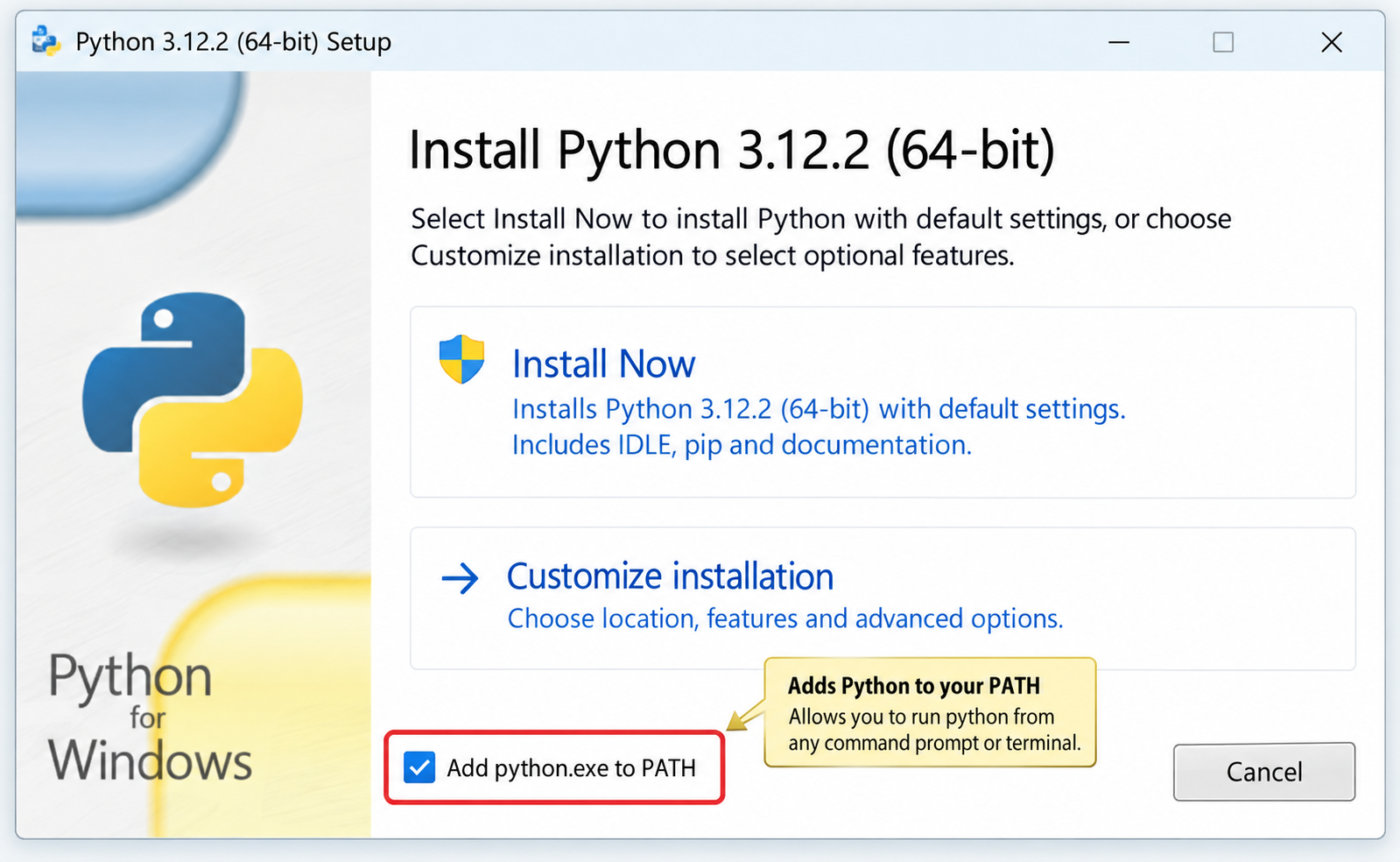
针对Windows初学者的Python安装实战指南。详细讲解如何从Python官网下载匹配架构的安装包,重点演示安装首屏勾选“Add python.exe to PATH”的关键操作,并提供使用python --version和py命令验证环境变量的具体步骤,帮助新手快速搭建开发环境并排查路径问题。

要想确认麒麟OS中Python程序的运行状态以及资源占用情况,我们可以这样做:用ps -ef | grep python来筛选进程;通过top命令,按P键排序查看实时负载;使用pgrep -f "script.py"精准获取PID;借助lsof -p PID验证文件打开状态。另外,还可以结合syst

在Debian系统上配置SSL证书通常涉及以下几个步骤:安装Web服务器:首先,你需要一个Web服务器,比如Apache或Nginx。这里以Apache为例。sudo apt updatesudo apt install apache2获取SSL证书:你可以从Let’s Encrypt免费获取SSL

要想让Python项目在统信UOS上正常运行,得先安装python3、python3-pip、python3-venv、python3-dev以及build-essential等组件。具体操作就是执行sudo apt install命令来一步到位完成安装,同时别忘了配置清华镜像源来给pip加速哦。在
在互联网上的各类网站中,无论大小,基本上都会有一个搜索框,用来给用户对内容进行搜索,小到站点搜索,大到搜索引擎搜索。从简单的来说,搜索功能确实很简单,一个简单的select语句就可以实现数据的搜索。而从复杂的来看,无论是搜索的精度还是搜索的效率,都是有很深的研究范围的。对于简单的搜索功能来说,一个s

立即在终端输入sudo shutdown -c取消倒计时关机,成功后显示“Shutdown cancelled”;若存在pmset重复任务,需再执行sudo pmset repeat cancel清除。Mac因Python脚本执行了os.system("sudo shutdown -h +10")或

之前写过一篇同步场景下用 Python 管理多个固定出口 IP 的实践(ExitPool + requests/httpx),覆盖了健康检查、故障转移和连接池复用。但在实际业务中,越来越多的场景用 asyncio 做高并发采集或批量接口调用——异步事件循环下多出口的管理方式和同步场景完全不同:单线程

写在前面:为什么静态出口 IP 不是"买了就行"不少团队在引入静态出口 IP 产品时,第一反应往往是:“地址配上去,这事就算完了。”可真到了真实业务里,静态出口 IP 真正能体现价值的地方,往往不在分配这一步,而在分配之后怎么管:地址有没有漂移,质量是否达标,某一条线路突然不可用时怎么切换,连接层又
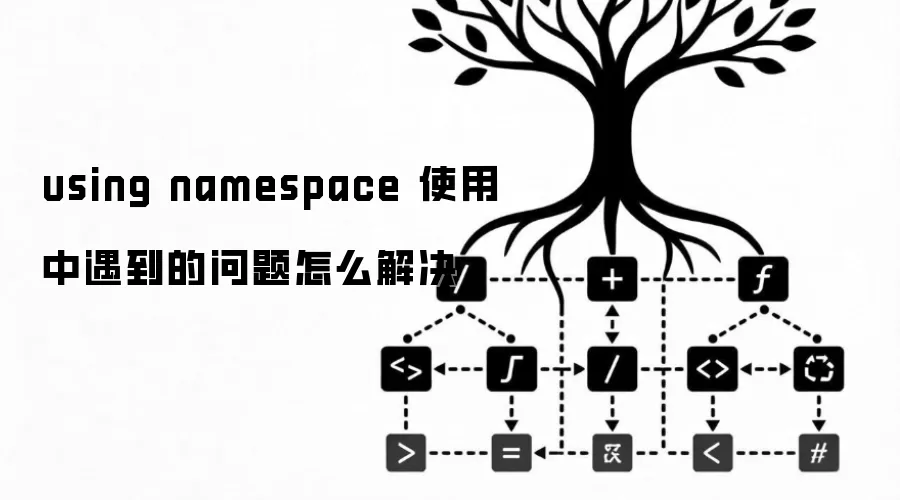
命名空间的基本概念与常见引入问题在C++等编程语言中,命名空间(namespace)是一种将代码标识符(如变量、函数、类名)封装在特定名称下的机制,其主要目的是避免命名冲突,尤其是在大型项目或使用多个第三方库时。使用“using namespace”指令可以将指定命名空间中的所有名称引入当前作用域,






Windows 10 是一款微软推出的经典操作系统,拥有硬件兼容性与多任务处理能力。它更偏向把系统状态查看和常用调节动作放在一起,适合需要持续观察和微调设备状态的场景。

极度公式是一款跨平台专业LaTeX公式识别编辑软件,支持OCR公式识别和多平台编辑。和使用说明,避免使用,享受完整功能与稳定支持。做扫描整理、文字提取和表格转换时,它能把识别后的处理步骤接得更顺,资料录入这类场景会省下不少时间。