

Python实现加密、保护和签名PowerPoint(PPT)演示文稿
PowerPoint 演示文稿在商业报告、客户提案和财务汇总这些场景里,几乎是每天都会打交道的东西。一旦文件里包含敏感信息,或者已经作为最终版本交付出去,往往就需要做点安全限制——比如控制谁可以访问、防止别人乱改,或者在审批完成后验证一下文档有没有被动手脚。如果每次都靠手动在 Microsoft P
 这篇文章会重点介绍,用 Python 怎么搞定下面这些 PowerPoint 安全处理任务:
- 给 PowerPoint 文件加上打开密码
- 打开已经加密的 PowerPoint 演示文稿
- 修改 PowerPoint 文件的密码
- 去掉演示文稿的密码保护
- 把 PowerPoint 文件设置成只读
- 给 PowerPoint 演示文稿添加数字签名
- 检查演示文稿是不是已经签过名了
- 移除演示文稿里的数字签名
这篇文章会重点介绍,用 Python 怎么搞定下面这些 PowerPoint 安全处理任务:
- 给 PowerPoint 文件加上打开密码
- 打开已经加密的 PowerPoint 演示文稿
- 修改 PowerPoint 文件的密码
- 去掉演示文稿的密码保护
- 把 PowerPoint 文件设置成只读
- 给 PowerPoint 演示文稿添加数字签名
- 检查演示文稿是不是已经签过名了
- 移除演示文稿里的数字签名
了解 PowerPoint 的保护方式
在不同的工作流程里,PowerPoint 文件可以通过多种方式来保护:1. 密码加密
用途: 要求用户输入密码后才能打开演示文稿。 典型使用场景: 机密财务数据、人力资源文件、私有客户指标等。2. 只读保护
用途: 允许用户查看文件内容,但通过修改密码来限制编辑操作。 典型使用场景: 培训幻灯片、官方公司指南、可复用模板等。3. 数字签名
用途: 确认签署者的身份,并且能帮助检测文件在签署之后有没有被修改过。 典型使用场景: 法律合同、公司正式公告、项目最终交付文件等。安装 Python PowerPoint 库
下面用到的代码示例基于 Spire.Presentation for Python。这是一个专门处理 PowerPoint 演示文稿的库,可以在不安装 Microsoft PowerPoint 的情况下,创建、编辑、转换和保护.pptx 和 .ppt 文件。
装起来也很简单,用 pip 命令就行:
pip install Spire.Presentation
1. 使用 Python 为 PowerPoint 演示文稿设置打开密码
想要加密演示文稿,流程很简单:先把源文件加载到Presentation 对象里,再调用 Encrypt() 方法,把打开密码传进去,最后把结果保存成新的 PPTX 文件。
from spire.presentation import *
from spire.presentation.common import *

# 创建 Presentation 对象
presentation = Presentation()

# 加载 PowerPoint 文件
presentation.LoadFromFile("quarterly_report.pptx")

# 使用打开密码加密演示文稿
password = "YourPassword123"
presentation.Encrypt(password)

# 保存加密后的演示文稿
presentation.Sa veToFile("encrypted_report.pptx", FileFormat.Pptx2013)

# 释放资源
presentation.Dispose()

print("The PowerPoint presentation has been encrypted.")
保存之后,任何人想打开 encrypted_report.pptx,都必须输入正确的密码。
这里有个生产环境下的提示:不要直接把密码写在源代码里。建议用环境变量、配置了访问控制的配置文件,或者专门的密钥管理服务来存密码。
2. 使用 Python 打开已加密的 PowerPoint 演示文稿
要打开一个已经加密的 PowerPoint 文件,只需要在LoadFromFile() 方法里把正确密码作为第二个参数传进去就行。文件加载成功后,就可以像处理普通演示文稿一样对它进行编辑、转换或者保存。
from spire.presentation import *
from spire.presentation.common import *

# 创建 Presentation 对象
presentation = Presentation()

# 使用正确密码加载已加密的 PowerPoint 文件
password = "YourPassword123"
presentation.LoadFromFile("encrypted_report.pptx", password)

# 加载完成后,可以正常处理演示文稿
# 例如,可以修改幻灯片、添加内容或转换文件格式

# 保存处理后的演示文稿
presentation.Sa veToFile("modified_report.pptx", FileFormat.Pptx2013)

# 释放资源
presentation.Dispose()

print("The encrypted PowerPoint file has been opened and sa ved.")
在内部文档工作流里,经常需要处理加密的演示文稿,这时候这种方法就特别实用。比如用来做内容提取、自动化报告更新,或者批量文档处理。
3. 使用 Python 修改 PowerPoint 演示文稿的密码
Spire.Presentation 并没有提供一个单独的“修改密码”功能。不过解决办法很简单:先用当前密码加载已加密文件,移除现有的加密,然后在保存之前应用一个新的密码。from spire.presentation import *
from spire.presentation.common import *
# 创建 Presentation 对象
presentation = Presentation()
# 使用旧密码加载演示文稿
old_password = "Old@Pass123"
presentation.LoadFromFile("report.pptx", old_password)
# 移除旧加密
presentation.RemoveEncryption()
# 应用新密码
new_password = "New@Pass456"
presentation.Encrypt(new_password)
# 使用新密码保存演示文稿
presentation.Sa veToFile("report_new_password.pptx", FileFormat.Pptx2013)
# 释放资源
presentation.Dispose()
print("The PowerPoint password has been changed.")
这种操作在文件转交给其他团队、重新分发给新的接收者,或者项目阶段变更后需要更新访问权限时,经常要用到。
4. 使用 Python 移除 PowerPoint 文件的密码保护
如果想把密码保护完全去掉,做法也很直接:先用正确密码加载已加密的演示文稿,然后调用RemoveEncryption() 方法,最后把文件保存成未加密的副本。
from spire.presentation import *
from spire.presentation.common import *

# 创建 Presentation 对象
presentation = Presentation()

# 使用原密码加载已加密的演示文稿
presentation.LoadFromFile("encrypted_report.pptx", "YourPassword123")

# 移除加密
presentation.RemoveEncryption()

# 保存为无密码保护的演示文稿
presentation.Sa veToFile("unencrypted_report.pptx", FileFormat.Pptx2013)

# 释放资源
presentation.Dispose()

print("Password protection has been removed from the presentation.")
对于已经获得授权的内部归档、索引或者文件合并场景,如果不再需要额外的安全层,就可以用这种方式把密码保护去掉。
5. 使用 Python 将 PowerPoint 演示文稿设置为只读
只读保护最适合用于模板、培训幻灯片、产品介绍,以及那些已经定稿、不应该被直接修改的演示文稿。可以用Protect() 方法给文件加上只读保护。
from spire.presentation import *
from spire.presentation.common import *

# 创建 Presentation 对象
presentation = Presentation()

# 加载 PowerPoint 文件
presentation.LoadFromFile("product_intro.pptx")

# 设置只读保护密码
read_only_password = "View@Only"
presentation.Protect(read_only_password)

# 保存受保护的演示文稿
presentation.Sa veToFile("readonly_intro.pptx", FileFormat.Pptx2013)

# 释放资源
presentation.Dispose()

print("The PowerPoint presentation has been set as read-only.")
需要区分一下的是,只读保护和文件加密不是一回事。只读保护主要是在界面层面控制编辑权限,而加密则是用来控制对文件内容本身的访问。如果你希望阻止未经授权的用户看到幻灯片的内容,应该用密码加密。
6. 使用 Python 为 PowerPoint 演示文稿添加数字签名
数字签名主要是用来验证 PowerPoint 文件的来源和完整性。它能让接收者确认文件是谁签署的,以及文件在签署之后有没有被改动过。 下面的示例展示了如何用.pfx 证书来给 PowerPoint 文件签名。
from spire.presentation import *
from spire.presentation.common import *
from datetime import datetime

# 创建 Presentation 对象
presentation = Presentation()

# 加载 PowerPoint 文件
presentation.LoadFromFile("contract_terms.pptx")

# 证书文件和密码
cert_file = "company_certificate.pfx"
cert_password = "YourCertificatePassword"

# 签署者名称
signer_name = "John Smith"

# 添加数字签名
presentation.AddDigitalSignature(
    cert_file,
    cert_password,
    signer_name,
    datetime.now()
)

# 保存已签名的演示文稿
presentation.Sa veToFile("signed_contract.pptx", FileFormat.Pptx2013)

# 释放资源
presentation.Dispose()

print("A digital signature has been added to the presentation.")
.pfx 文件里通常包含证书和私钥。测试的时候,用自签名证书可能就够了;但如果文件要用于正式分发或者对外流转,还是建议使用由受信任证书颁发机构签发的证书。
7. 使用 Python 检查 PowerPoint 演示文稿是否已进行数字签名
在接收或处理外部演示文稿之前,可以用IsDigitallySigned() 方法快速检查一下文件里有没有数字签名。
from spire.presentation import *

# 创建 Presentation 对象
presentation = Presentation()

# 加载 PowerPoint 文件
presentation.LoadFromFile("received_document.pptx")

# 检查演示文稿是否包含数字签名
if presentation.IsDigitallySigned():
    print("This PowerPoint presentation contains a digital signature.")
else:
    print("This PowerPoint presentation is not digitally signed.")

# 释放资源
presentation.Dispose()
这个检查只能确认文件里是否存在数字签名。在更严格的审批流程中,可能还需要进一步验证证书的信任状态、有效期,以及文件在签名后有没有被修改过。
8. 使用 Python 移除 PowerPoint 演示文稿中的数字签名
如果一份已经签名的演示文稿需要再次编辑,最好先把现有的签名移除掉。事实上,一旦文件被修改过,原有的数字签名也会自动失效。from spire.presentation import *
from spire.presentation.common import *
# 创建 Presentation 对象
presentation = Presentation()
# 加载已签名的 PowerPoint 文件
presentation.LoadFromFile("signed_document.pptx")
# 移除所有数字签名
presentation.RemoveAllDigitalSignatures()
# 保存未签名的演示文稿
presentation.Sa veToFile("unsigned_document.pptx", FileFormat.Pptx2013)
# 释放资源
presentation.Dispose()
print("All digital signatures ha ve been removed from the presentation.")
移除数字签名后,这个演示文稿就不再包含原始的完整性证明或签署者信息。如果编辑后的文件还需要共享或者作为正式文档使用,记得在所有修改完成之后重新添加数字签名。
使用 Python 保护 PowerPoint 文件的最佳实践
在通过程序来保护 PowerPoint 文件时,有几个实践建议值得留意: - 独立渠道传输密码: 千万不要在同一封邮件或同一条消息里,既发送受密码保护的 PPTX 文件,又把密码也带上。 - 妥善保护私钥: 对服务器上的脚本、证书和输出文件夹的访问权限要做好限制。 - 修改后重新签名: 文件一旦被修改,现有的数字签名就会失效,所以最终编辑完成后记得重新应用数字签名。 - 避免硬编码密码: 在生产环境里,最好用环境变量或密钥管理器来动态处理密码。 - 不同文件组用不同密码: 别让所有机密演示文稿都共用同一个密码。常见问题
Q1:不知道密码的情况下,能移除 PowerPoint 密码吗? 不行。要解密或移除 PowerPoint 文件的加密保护,必须知道正确的密码。如果密码丢了,经过强加密的文件通常没办法通过常规方式恢复。 Q2:只读保护会加密 PowerPoint 文件内容吗? 不会。只读保护只是在界面层面控制编辑权限,而加密才是真正控制对文件内容本身的访问。如果希望阻止未经授权的用户查看幻灯片内容,应该用密码加密。 Q3:运行这些脚本需要安装 Microsoft PowerPoint 吗? 不需要。Spire.Presentation for Python 可以独立运行。就算系统里没有安装 Microsoft Office 或 PowerPoint,也照样可以保护、解密和签名 PowerPoint 文件。结论
用 Python 来自动化 PowerPoint 的保护任务,能减少很多重复的手动操作,也让文件安全处理更容易集成到内部文档工作流里。借助 Spire.Presentation for Python,可以在完全不依赖 Microsoft PowerPoint 的情况下,加密演示文稿、打开加密文件、修改或移除密码、应用只读保护,以及管理数字签名。 对于机密文件,用密码加密来控制访问权限;对于定稿的模板或内部培训幻灯片,用只读保护来减少误编辑;对于已经审批或正式发布的演示文稿,在所有修改完成后添加数字签名,确保文件来源和完整性是可验证的。
详解Windows环境下安装OpenAI Codex CLI的步骤,包括WSL环境检查、Node.js/npm配置、npm全局安装命令及首次启动验证,适合开发者快速上手。
学习如何配置 NativeRest REST API 客户端。涵盖 Windows/macOS/Linux 安装后的工作区创建、环境变量管理、请求编辑及响应查看步骤,帮助开发者快速完成基础环境搭建与连通性测试。
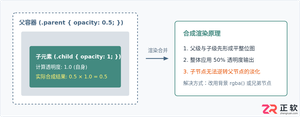
深入解析CSS中设置透明度的核心属性opacity,剖析子元素继承、事件穿透、层叠上下文等关键注意事项,并提供与rgba、hsla的实用选型对比。
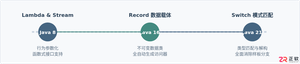
本文通过具体的旧版与新版代码对比,详细剖析Java 8引入的Lambda表达式、Java 14/16引入的Record类,以及Java 12至21逐步演进完善的Switch表达式与模式匹配,展示代码简化路径与避坑要点。
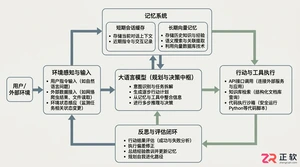
系统梳理AI智能体开发培训的核心知识模块、技术栈选型与典型实战项目,解析低代码平台与纯代码框架的差异,提供从零构建可落地智能体的完整学习与实施路径。
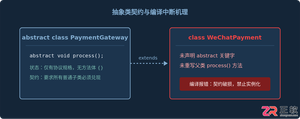
针对Java开发中常见的“子类未实现抽象方法”编译错误,深入分析报错原因,提供重写实现、声明抽象子类两种标准修复路径,并总结参数签名、访问修饰符等典型避坑要点。
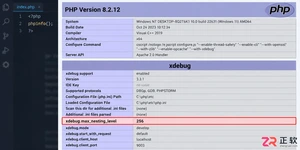
遇到PHP递归报错时,不要盲目调大max_nesting_level。本文教你区分Xdebug限制、内存耗尽和正则递归错误,提供代码级的终止条件优化与迭代替代方案,彻底解决栈溢出问题。
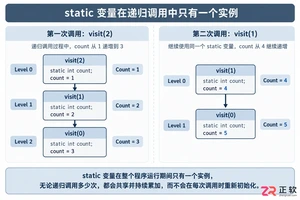
本文分析PHP递归中static变量导致的状态污染及引用传递引发的共享数据修改问题。提供具体的代码复现、缓存键设计建议及调试打印技巧,帮助开发者避免隐蔽的逻辑错误。
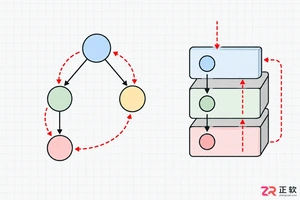
解析PHP递归函数在树形数据处理中的性能瓶颈,提供预加载数据消除I/O、使用显式栈替代深层递归的实战方案,帮助开发者在代码可读性与执行效率间做出合理取舍。




Photoshop 2026 是 Adobe 推出的专业图像处理与视觉设计软件,支持 Windows、macOS 和 iPad 等平台,广泛应用于摄影修图、电商设计、平面海报、数字绘画及视觉合成等创作场景。

Blender 是一款免费开源、跨平台的专业 3D 创作软件,集建模、动画、渲染、视频编辑与视觉合成等功能于一体,广泛应用于影视动画、游戏设计和建筑可视化等领域。软件支持 Cycles 物理渲染器与 Eevee 实时渲染引擎,并提供多边形建模、骨骼绑定、物理模拟等专业工具。Blender 兼容 Windows、macOS 和 Linux 系统,安装包轻巧、运行流畅,依托活跃的全球开发者社区持续更新,是从初学者到专业创作者都值得选择的正版 3D 创作工具。

Photoshop 2026 是 Adobe 推出的专业图像处理与视觉设计软件,支持 Windows、macOS 和 iPad 等平台,广泛应用于摄影修图、电商设计、平面海报、数字绘画及视觉合成等创作场景。
Blender 是一款免费开源、跨平台的专业 3D 创作软件,集建模、动画、渲染、视频编辑与视觉合成等功能于一体,广泛应用于影视动画、游戏设计和建筑可视化等领域。软件支持 Cycles 物理渲染器与 Eevee 实时渲染引擎,并提供多边形建模、骨骼绑定、物理模拟等专业工具。Blender 兼容 Windows、macOS 和 Linux 系统,安装包轻巧、运行流畅,依托活跃的全球开发者社区持续更新,是从初学者到专业创作者都值得选择的正版 3D 创作工具。