

.NETCore实现与Windows硬件交互操作的完整指南
.NETCore可通过注册表操作、WMI查询、.NETIoT库及P/Invoke实现与Windows硬件交互。注册表用于读写系统配置;WMI可获取CPU、磁盘等硬件信息;.NETIoT库支持GPIO、I2C等协议控制;P/Invoke直接调用底层API。各方法在功能、权限、性能方面各有优劣。
.NET Core与Windows硬件交互技术全景
| 交互方法 | 核心技术 | 典型应用场景 | 关键组件/类 | 优势 | 局限性 |
|---|---|---|---|---|---|
| Windows注册表操作 | 直接读写Windows注册表 | 读取/修改系统配置、应用设置 | Registry, RegistryKey | 直接访问系统配置,功能全面 | 需处理权限 and 异常,不当操作有风险 |
| WMI查询 | Windows管理规范 | 获取硬件信息(CPU、磁盘、网络等) | ManagementObjectSearcher | 信息丰富,标准化接口 | 仅查询,不能控制,性能开销较大 |
| .NET IoT库 | 通过USB转串口适配器 | GPIO、I2C、SPI通信 | Iot.Device.FtCommon, Ft232HDevice | 跨平台,硬件协议级访问 | 需要特定硬件适配器支持 |
| P/Invoke原生API | 调用Windows原生API | 触控板、低级输入设备 | DllImport, 原始输入API | 直接底层访问,功能强大 | 复杂度高,需处理平台调用细节 |
1. Windows注册表操作
原理解说
Windows注册表本质上是一个集中式的层次数据库,专门用来存放操作系统和应用程序的配置信息。通过.NET Core的Microsoft.Win32命名空间,开发者可以轻松访问和修改这些配置项,从而间接实现对硬件的控制——比如调整显示设置、管理电源方案等。说白了,它就是系统配置的“大本营”,通过它你能跟硬件“说上话”。
核心组件
- Registry类:提供对注册表根键的静态访问,比如
Registry.LocalMachine、Registry.CurrentUser这些常用的入口。 - RegistryKey类:代表具体的注册表项,负责创建、打开、删除、读取和写入等操作,是实际干活的主力。
实战示例
using Microsoft.Win32;
using System;

public class RegistryOperations
{
    public static void ReadWriteRegistry()
    {
        try
        {
            // 在HKEY_CURRENT_USER下创建或打开Software\MyApp子项
            using (RegistryKey key = Registry.CurrentUser.CreateSubKey(@"Software\MyApp"))
            {
                if (key != null)
                {
                    // 写入不同类型的值
                    key.SetValue("Version", "1.0.0", RegistryValueKind.String);
                    key.SetValue("LastRun", DateTime.Now.ToString(), RegistryValueKind.String);
                    key.SetValue("StartWithOS", 1, RegistryValueKind.DWord);

                    // 读取值
                    string version = key.GetValue("Version") as string;
                    string lastRun = key.GetValue("LastRun") as string;
                    int startWithOS = (int)key.GetValue("StartWithOS", 0);

                    Console.WriteLine($"版本: {version}, 最后运行: {lastRun}, 随系统启动: {startWithOS}");
                }
            }
        }
        catch (Exception ex)
        {
            Console.WriteLine($"注册表操作失败: {ex.Message}");
        }
    }

    // 查询系统信息示例
    public static void ReadSystemInfo()
    {
        try
        {
            // 读取Windows版本信息
            using (RegistryKey key = Registry.LocalMachine.OpenSubKey(@"SOFTWARE\Microsoft\Windows NT\CurrentVersion"))
            {
                if (key != null)
                {
                    string productName = key.GetValue("ProductName") as string;
                    string currentVersion = key.GetValue("CurrentVersion") as string;

                    Console.WriteLine($"操作系统: {productName}");
                    Console.WriteLine($"系统版本: {currentVersion}");
                }
            }
        }
        catch (UnauthorizedAccessException)
        {
            Console.WriteLine("权限不足,无法访问系统注册表");
        }
        catch (Exception ex)
        {
            Console.WriteLine($"查询系统信息失败: {ex.Message}");
        }
    }
}
关键注意事项
- 权限管理:操作
HKEY_LOCAL_MACHINE通常需要管理员权限,否则会碰一鼻子灰。 - 资源释放:
RegistryKey实现了IDisposable接口,务必用using语句包裹,确保资源及时释放,别让系统“内存泄漏”找上门。 - 数据类型:注册表支持多种数据类型,用
RegistryValueKind明确指定,能避免数据存储出岔子。 - 异常处理:注册表操作可能抛出
SecurityException、UnauthorizedAccessException等异常,做好异常处理是基本功。
2. WMI硬件信息查询
原理解说
WMI(Windows Management Instrumentation)是Windows系统管理的基础设施,它提供了一套统一的接口,让你能轻松获取系统硬件和软件的各种信息。WMI使用类似SQL的查询语言(WQL)来查询系统信息,写起来很直观。
核心组件
- ManagementObjectSearcher:执行WMI查询并返回结果集合,是查询的“发动机”。
- ManagementObjectCollection:包含查询返回的WMI对象集合,相当于结果集。
- ManagementObject:代表单个WMI对象,包含属性和方法,是具体数据的载体。
实战示例
using System;
using System.Management;
using System.Collections.Generic;

public class HardwareInfoQuery
{
    public static void QueryHardwareInfo()
    {
        // 示例1:查询CPU信息
        QueryCPUInfo();

        // 示例2:查询磁盘信息
        QueryDiskInfo();

        // 示例3:查询网络适配器
        QueryNetworkAdapters();
    }

    public static void QueryCPUInfo()
    {
        try
        {
            string query = "SELECT * FROM Win32_Processor";
            using (ManagementObjectSearcher searcher = new ManagementObjectSearcher(query))
            {
                ManagementObjectCollection results = searcher.Get();

                Console.WriteLine("=== CPU信息 ===");
                foreach (ManagementObject mo in results)
                {
                    string name = mo["Name"] as string;
                    string manufacturer = mo["Manufacturer"] as string;
                    string maxClockSpeed = mo["MaxClockSpeed"] as string;
                    string cores = mo["NumberOfCores"] as string;

                    Console.WriteLine($"处理器: {name}");
                    Console.WriteLine($"制造商: {manufacturer}");
                    Console.WriteLine($"最大主频: {maxClockSpeed} MHz");
                    Console.WriteLine($"核心数: {cores}");
                    Console.WriteLine("------------------------");
                }
            }
        }
        catch (Exception ex)
        {
            Console.WriteLine($"查询CPU信息失败: {ex.Message}");
        }
    }

    public static void QueryDiskInfo()
    {
        try
        {
            string query = "SELECT * FROM Win32_LogicalDisk WHERE DriveType = 3";
            using (ManagementObjectSearcher searcher = new ManagementObjectSearcher(query))
            {
                ManagementObjectCollection results = searcher.Get();

                Console.WriteLine("=== 磁盘信息 ===");
                foreach (ManagementObject mo in results)
                {
                    string deviceId = mo["DeviceID"] as string;
                    string size = mo["Size"] as string;
                    string freeSpace = mo["FreeSpace"] as string;

                    if (long.TryParse(size, out long totalSize) &&
                        long.TryParse(freeSpace, out long free))
                    {
                        double totalGB = Math.Round(totalSize / (1024.0 * 1024.0 * 1024.0), 2);
                        double freeGB = Math.Round(free / (1024.0 * 1024.0 * 1024.0), 2);
                        double usedPercent = Math.Round((totalSize - free) * 100.0 / totalSize, 2);

                        Console.WriteLine($"磁盘: {deviceId}");
                        Console.WriteLine($"总大小: {totalGB} GB");
                        Console.WriteLine($"可用空间: {freeGB} GB");
                        Console.WriteLine($"使用率: {usedPercent}%");
                        Console.WriteLine("------------------------");
                    }
                }
            }
        }
        catch (Exception ex)
        {
            Console.WriteLine($"查询磁盘信息失败: {ex.Message}");
        }
    }

    public static void QueryNetworkAdapters()
    {
        try
        {
            string query = "SELECT * FROM Win32_NetworkAdapter WHERE NetEnabled = True";
            using (ManagementObjectSearcher searcher = new ManagementObjectSearcher(query))
            {
                ManagementObjectCollection results = searcher.Get();

                Console.WriteLine("=== 网络适配器 ===");
                foreach (ManagementObject mo in results)
                {
                    string name = mo["Name"] as string;
                    string adapterType = mo["AdapterType"] as string;
                    string macAddress = mo["MACAddress"] as string;
                    string netEnabled = mo["NetEnabled"]?.ToString();

                    if (!string.IsNullOrEmpty(macAddress))
                    {
                        Console.WriteLine($"适配器名称: {name}");
                        Console.WriteLine($"类型: {adapterType}");
                        Console.WriteLine($"MAC地址: {macAddress}");
                        Console.WriteLine("------------------------");
                    }
                }
            }
        }
        catch (Exception ex)
        {
            Console.WriteLine($"查询网络适配器失败: {ex.Message}");
        }
    }
}
关键注意事项
- 性能考虑:WMI查询可能比较慢,所以不要在性能关键路径上频繁调用,否则会拖慢程序。
- 异常处理:WMI查询可能因权限不足或WMI服务未运行而失败,代码里要留好“后路”。
- 字段验证:WMI对象的属性有可能为null,访问前最好先检查一下,避免空引用异常。
- 命名空间:别忘了添加
System.Management包引用,否则编译通不过。
3. .NET IoT库硬件协议控制
原理解说
.NET IoT库为GPIO、I2C、SPI等通用硬件协议提供了统一的API,通过USB转串口适配器(比如FTDI FT232H),你就可以在普通PC上使用这些协议与外围设备通信了。这相当于给普通电脑装上了“硬件接口”,能直接跟传感器、LED等设备打交道。
核心组件
- FtCommon类:提供FTDI设备检测和枚举功能,帮你找到可用的硬件。
- Ft232HDevice类:代表FT232H适配器设备,用于创建GPIO、I2C和SPI控制器。
- GpioController类:通用输入输出引脚控制,用来控制高低电平。
- I2cDevice类:I2C通信设备,用于连接各种传感器。
实战示例
using System;
using System.Device.Gpio;
using System.Device.I2c;
using System.Threading;
using Iot.Device.Ft232H;
using Iot.Device.FtCommon;
using Iot.Device.Bmxx80;
using Iot.Device.Bmxx80.PowerMode;

public class IotHardwareControl
{
    public static void ControlGpioAndI2c()
    {
        // 检查可用的FTDI设备
        var devices = FtCommon.GetDevices();
        if (devices.Count == 0)
        {
            Console.WriteLine("未找到FTDI设备,请确保设备已连接且驱动程序已安装");
            return;
        }

        Console.WriteLine($"找到 {devices.Count} 个FTDI设备");

        // 使用第一个设备
        var device = devices[0];
        Console.WriteLine($"使用设备: {device.Description}");

        // GPIO控制示例
        GpioControlExample(device);

        // I2C设备示例
        I2cDeviceExample(device);
    }

    public static void GpioControlExample(FtDevice device)
    {
        try
        {
            using (var ft232h = new Ft232HDevice(device))
            using (var gpio = ft232h.CreateGpioController())
            {
                // 获取引脚号(D7对应FT232H上的物理引脚)
                int ledPin = Ft232HDevice.GetPinNumberFromString("D7");

                // 打开引脚并设置为输出模式
                gpio.OpenPin(ledPin, PinMode.Output);

                Console.WriteLine("GPIO控制示例: LED闪烁(按任意键停止)");

                // LED闪烁
                bool ledOn = true;
                while (!Console.KeyA vailable)
                {
                    gpio.Write(ledPin, ledOn ? PinValue.High : PinValue.Low);
                    Thread.Sleep(500);
                    ledOn = !ledOn;
                }
                Console.ReadKey(); // 清除按键

                // 关闭LED并清理资源
                gpio.Write(ledPin, PinValue.Low);
                gpio.ClosePin(ledPin);
            }
        }
        catch (Exception ex)
        {
            Console.WriteLine($"GPIO控制失败: {ex.Message}");
        }
    }

    public static void I2cDeviceExample(FtDevice device)
    {
        try
        {
            using (var ft232h = new Ft232HDevice(device))
            {
                // 创建I2C连接设置
                var i2cSettings = new I2cConnectionSettings(0, 0x76);

                // 创建I2C设备
                using (var i2cDevice = ft232h.CreateI2cDevice(i2cSettings))
                using (var bme280 = new Bme280(i2cDevice))
                {
                    // 配置传感器
                    bme280.SetPowerMode(Bmx280PowerMode.Forced);
                    int measurementTime = bme280.GetMeasurementDuration();

                    Console.WriteLine("I2C传感器读取示例(BME280):");

                    // 读取传感器数据
                    for (int i = 0; i < 5; i++)
                    {
                        bme280.SetPowerMode(Bmx280PowerMode.Forced);
                        Thread.Sleep(measurementTime);

                        if (bme280.TryReadTemperature(out var temperature) &&
                            bme280.TryReadPressure(out var pressure) &&
                            bme280.TryReadHumidity(out var humidity))
                        {
                            Console.WriteLine($"温度: {temperature.DegreesCelsius:0.##}°C");
                            Console.WriteLine($"压力: {pressure.Hectopascals:0.##} hPa");
                            Console.WriteLine($"湿度: {humidity.Percent:0.##}%");
                            Console.WriteLine("------------------------");
                        }

                        Thread.Sleep(2000);
                    }
                }
            }
        }
        catch (Exception ex)
        {
            Console.WriteLine($"I2C设备操作失败: {ex.Message}");
        }
    }
}
关键注意事项
- 驱动程序:确保已安装FTDI D2XX驱动程序,否则硬件无法被识别。
- 硬件连接:正确连接硬件引脚,注意I2C和SPI的模式开关设置,接错了会“罢工”。
- 资源释放:及时释放GPIO引脚和设备资源,避免资源被占用。
- 电压匹配:确保逻辑电平匹配,否则有烧坏设备的风险。
4. P/Invoke原生API调用
原理解说
对于那些没有托管封装的Windows API,P/Invoke(Platform Invocation Services)是直接调用原生DLL函数的利器。这种方法适用于需要直接与低级硬件或系统服务交互的场景,比如读取触控板数据或控制低级输入设备。
实战示例:触控板访问
using System;
using System.Runtime.InteropServices;
using System.Windows.Forms;

public class RawInputTouchpad
{
    // 定义Windows API
    [DllImport("user32.dll")]
    private static extern IntPtr GetForegroundWindow();

    [DllImport("user32.dll")]
    private static extern bool RegisterRawInputDevices(
        RAWINPUTDEVICE[] pRawInputDevices,
        uint uiNumDevices,
        uint cbSize);

    [DllImport("user32.dll")]
    private static extern uint GetRawInputData(
        IntPtr hRawInput,
        uint uiCommand,
        IntPtr pData,
        ref uint pcbSize,
        uint cbSizeHeader);

    // 常量定义
    private const int WM_INPUT = 0x00FF;
    private const int RIDEV_INPUTSINK = 0x00000100;
    private const ushort HID_USAGE_PAGE_GENERIC = 0x01;
    private const ushort HID_USAGE_GENERIC_MOUSE = 0x02;

    // 结构体定义
    [StructLayout(LayoutKind.Sequential)]
    public struct RAWINPUTDEVICE
    {
        public ushort usUsagePage;
        public ushort usUsage;
        public uint dwFlags;
        public IntPtr hwndTarget;
    }

    private IntPtr _windowHandle;

    public RawInputTouchpad(IntPtr windowHandle)
    {
        _windowHandle = windowHandle;
        RegisterForRawInput();
    }

    private void RegisterForRawInput()
    {
        RAWINPUTDEVICE[] devices = new RAWINPUTDEVICE[1];

        // 注册鼠标输入(包括触控板)
        devices[0].usUsagePage = HID_USAGE_PAGE_GENERIC;
        devices[0].usUsage = HID_USAGE_GENERIC_MOUSE;
        devices[0].dwFlags = RIDEV_INPUTSINK;
        devices[0].hwndTarget = _windowHandle;

        if (!RegisterRawInputDevices(devices, (uint)devices.Length,
            (uint)Marshal.SizeOf(typeof(RAWINPUTDEVICE))))
        {
            throw new ApplicationException("注册原始输入设备失败");
        }
    }

    // 在窗体中处理WM_INPUT消息
    public void ProcessInputMessage(Message m)
    {
        if (m.Msg == WM_INPUT)
        {
            uint dataSize = 0;

            // 获取原始输入数据大小
            GetRawInputData(m.LParam, 0x10000003, IntPtr.Zero,
                ref dataSize, (uint)Marshal.SizeOf(typeof(RAWINPUTHEADER)));

            if (dataSize > 0)
            {
                IntPtr buffer = Marshal.AllocHGlobal((int)dataSize);
                try
                {
                    // 获取实际数据
                    if (GetRawInputData(m.LParam, 0x10000003, buffer,
                        ref dataSize, (uint)Marshal.SizeOf(typeof(RAWINPUTHEADER))) == dataSize)
                    {
                        // 解析触控板数据
                        ProcessTouchpadData(buffer);
                    }
                }
                finally
                {
                    Marshal.FreeHGlobal(buffer);
                }
            }
        }
    }

    private void ProcessTouchpadData(IntPtr rawData)
    {
        // 这里解析原始输入数据
        // 实际实现需要根据触控板设备的数据格式进行解析
        Console.WriteLine("收到触控板输入数据");
    }
}

// 在Windows窗体中使用
public partial class MainForm : Form
{
    private RawInputTouchpad _touchpad;

    public MainForm()
    {
        InitializeComponent();
        _touchpad = new RawInputTouchpad(this.Handle);
    }

    protected override void WndProc(ref Message m)
    {
        _touchpad?.ProcessInputMessage(m);
        base.WndProc(ref m);
    }
}
关键注意事项
- 平台依赖性:P/Invoke代码是Windows特定的,不具备跨平台能力,所以别指望在Linux上跑。
- 数据类型映射:确保正确映射原生类型和托管类型,否则程序会崩溃。
- 错误处理:检查API返回值,正确处理错误情况,别让程序“带病运行”。
- 安全性:原生API调用可能绕过某些安全限制,需谨慎使用,免得“后院起火”。
以上就是.NET Core实现与Windows硬件交互操作的完整指南的详细内容,希望对大家有所帮助。

无需专业摄影棚,使用PixPix只需3步即可将白底商品图生成摄影级场景图。本文详解主体准备、提示词编写及局部修正技巧,帮助电商卖家快速制作高质量主图与详情页素材。
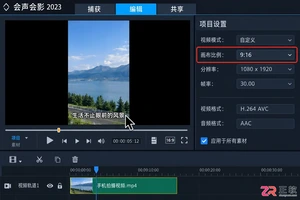
竖版短视频底部常有硬字幕,直接裁剪易破坏构图。本教程介绍在会声会影中利用裁剪工具、纯色覆盖层、分段剪辑及关键帧跟踪技术去除底部字幕的方法,适用于不同镜头运动场景,确保画面自然且无残留文字。
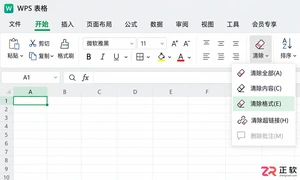
WPS表格单元格颜色边框太乱?教你用“清除格式”一键恢复默认外观,同时完整保留文字、数字和公式。注意区分清除内容与格式,避免误删数据。

想知道WPS客户端表格如何多人协同编辑?本教程详解将本地表格转为云文档、通过分享链接设置可编辑权限、邀请成员协作及利用历史版本恢复数据的完整步骤,解决多人改表版本冲突难题。
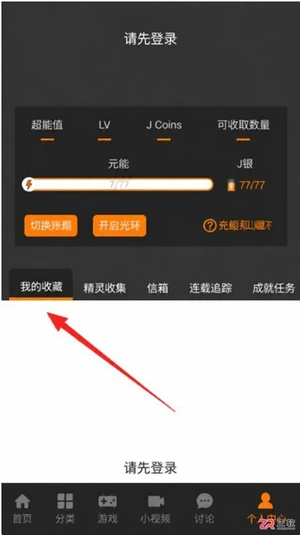
JM漫画app最新版入口是https://www.jmmanhua.top/,这里有免费观看、离线下载及极简操作优势。针对隐私保护需求,详细解析在设置中通过“隐私设置”与“我收藏的漫画”界面实现内容完全隐藏的具体步骤。同时解答新手关于操作流程、离线功能及适用性的常见疑问,帮助用户快速上手并享受无广告干扰的阅读体验。

面向希望获取丰富漫画资源并实现离线阅读的移动端用户,漫蛙3Manwa3(https://www.manwamh.top/)提供快速更新与多设备支持。针对网络不稳定或流量受限痛点,本文详解官方正版下载后的核心操作:包括通过详情页批量缓存章节、利用关键词与榜单精准检索韩漫、切换横竖屏及夜间模式优化体验,以及账号登录实现跨安卓设备进度同步,帮助用户高效管理本地资源库。

面向二次元漫画爱好者,漫蛙漫画(https://www.manwamh.top/)提供丰富的全彩漫画资源及多国语言阅读支持。针对用户寻找稳定入口、高效检索及舒适阅读的需求,本文介绍漫蛙漫画的线路选择、防走失网址收藏方法,详解从“最近更新”查找韩漫、一键搜索到离线下载的操作流程,并涵盖日间/夜间模式切换、书架管理等新手必备技巧,帮助用户快速上手享受流畅的追漫体验。
漫蛙Manwa3 APP最新版下载地址:https://www.manwamh.top/,这里包含核心功能与操作流程。针对账号注册、VIP开通及阅读设置等关键环节,本文详细梳理了从手机号注册登录、浏览热门榜单到开启高清无广告阅读的具体步骤。涵盖多语言切换、云同步、断点续传及多种阅读模式调整方法,帮助用户快速掌握软件用法,享受流畅的追漫体验。
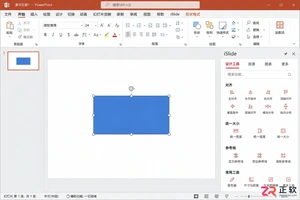
iSlide设计工具侧边栏不见了怎么办?本教程详解在Windows版PPT中通过【设计工具】按钮恢复侧边栏的方法,涵盖面板拖拽、模块隐藏检查及插件加载异常的处理,同时提供macOS用户的使用指引。
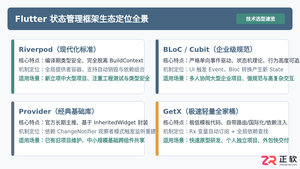
全面盘点Flutter主流状态管理框架,深度解析Provider、Riverpod、Bloc与GetX的核心机制、优缺点及适用场景,提供系统化的状态管理选型指南。




Postman是一套面向API全生命周期的开发与测试平台,可在Mac上发送和调试多种协议请求,管理集合、环境及认证信息,并完成脚本测试、模拟服务、监控、文档发布和团队协作。它适合开发、测试及运维人员使用,提供个人免费方案。

Docker Desktop 是 Docker 官方为 Mac 提供的容器开发环境,集成 Docker Engine、命令行工具、Compose、Build、Kubernetes 与图形化管理界面。

Android Studio 是 Google 面向安卓应用开发提供的官方集成开发环境,基于 IntelliJ IDEA 构建。它整合智能代码编辑、Gradle 构建、界面预览、设备模拟、性能分析、调试测试及 APK 分析等工具。

PixPix 是面向品牌、卖家和内容团队的在线 AI 图片视频创作平台,提供图视频 Agent、无限画布、图片生成、视频生成、自然语言编辑及商品套图、产品精修和带货视频等电商工具。

Postman 是面向 API 全生命周期的开发与协作平台。Windows 桌面版可用于构建和发送 HTTP、GraphQL、gRPC、WebSocket、MQTT 等请求,并提供环境变量、集合、脚本测试、模拟服务、监控、文档及团队工作区等

Docker Desktop 为 Windows 开发者提供集成式容器环境,内置 Docker Engine、命令行工具、Compose、Build 与 Kubernetes 等组件,可在本机完成镜像构建、容器运行、日志查看和资源管理。