

vmware中如何为虚拟机增加硬盘容量
两种实用方法:扩展VMware虚拟机磁盘容量 虚拟机用久了,磁盘空间告急是常有的事。别着急,这里提供两种主流且经过验证的解决方案,你可以根据实际情况灵活选择。 第一种方法:增加新硬盘分区 这相当于给你的虚拟机加装一块全新的物理硬盘,操作直观,适合绝大多数用户。 第一步,在VMware中挂载新虚拟硬盘
两种实用方法:扩展VMware虚拟机磁盘容量
虚拟机用久了,磁盘空间告急是常有的事。别着急,这里提供两种主流且经过验证的解决方案,你可以根据实际情况灵活选择。
第一种方法:增加新硬盘分区
这相当于给你的虚拟机加装一块全新的物理硬盘,操作直观,适合绝大多数用户。
第一步,在VMware中挂载新虚拟硬盘。 首先,确保虚拟机处于关机状态。打开VMware,选中目标虚拟机,点击菜单栏的“虚拟机” -> “设置”。在弹出的窗口中,点击“添加”按钮,选择“硬盘”类型,然后一路“下一步”。过程中,关键一步是设置新硬盘的容量大小,请根据你的需求填写。完成设置后,点击“确定”。
第二步,在Guest系统内初始化和分区。 现在,启动虚拟机,进入操作系统(本例以Windows为例)。依次打开:控制面板 -> 管理工具 -> 计算机管理 -> 磁盘管理。这时,系统通常会弹出“磁盘初始化和转换向导”,按照提示完成初始化即可。
初始化后,在磁盘管理界面的右下区域,你会发现新增的磁盘显示为“未指派”状态。右键点击该磁盘,选择“新建磁盘分区”,然后跟随向导完成分区创建和格式化。至此,你就获得了一个全新的盘符,空间立刻得到扩充。
第二种方法:扩展已有硬盘容量
如果你想直接扩大原有系统盘(C盘等)的容量,图形界面通常无能为力。这时,就需要请出VMware自带的命令行工具:vmware-vdiskmanager.exe。
这个工具位于VMware Workstation的安装目录下(例如:E:\Program Files\VMware\VMware Workstation)。它的功能很强大,而我们用来扩容的关键参数是 -x。
完整的命令参数说明如下:
Usage: vmware-vdiskmanager.exe OPTIONS| Offline disk manipulation utility Options: -c : create disk; need to specify other create options -d : defragment the specified virtual disk -k : shrink the specified virtual disk -n : rename the specified virtual disk; need to specify destination disk-name -p : prepare the mounted virtual disk specified by the drive-letter for shrinking -q : do not log messages -r : convert the specified disk; need to specify destination disk-type -x : expand the disk to the specified capacity Additional options for create and convert: -a: (for use with -c only) adapter type (ide, buslogic o r lsilogic) -s : capacity of the virtual disk -t : disk type id Disk types: 0 : single growable virtual disk 1 : growable virtual disk split in 2Gb files 2 : preallocated virtual disk 3 : preallocated virtual disk split in 2Gb files The capacity can be specified in sectors, Kb, Mb or Gb. The acceptable ranges: ide adapter : [100.0Mb, 950.0Gb] scsi adapter: [100.0Mb, 950.0Gb] ex 1: vmware-vdiskmanager.exe -c -s 850Mb -a ide -t 0 myIdeDisk.vmdk ex 2: vmware-vdiskmanager.exe -d myDisk.vmdk ex 3: vmware-vdiskmanager.exe -r sourceDisk.vmdk -t 0 destinationDisk.vm dk ex 4: vmware-vdiskmanager.exe -x 36Gb myDisk.vmdk ex 5: vmware-vdiskmanager.exe -n sourceName.vmdk destinationName.vmdk ex 6: vmware-vdiskmanager.exe -k myDisk.vmdk ex 7: vmware-vdiskmanager.exe -p (A virtual disk first needs to be mounted at )
看到了吗?示例4正是我们需要的扩容操作。
一次完整的实操记录
纸上得来终觉浅,下面是一次真实的操作过程,几个关键的“坑点”都遇到了:
E:\Program Files\VMware\VMware Workstation>set path=%path%;E:\Program Files\VMware\VMware Workstation
E:\Program Files\VMware\VMware Workstation>e:
E:\Program Files\VMware\VMware Workstation>cd E:\VM_Machine
E:\VM_Machine>cd Windows Server 2003 Standard Edition
E:\VM_Machine\Windows Server 2003 Standard Edition>dir *.vmdk
...(列出vmdk文件列表,通常有几个)...

E:\VM_Machine\Windows Server 2003 Standard Edition>vmware-vdiskmanager.exe -x 4G "Windows Server 2003 Standard Edition.vmdk"
Using log file C:\DOCUME~1\ADMINI~1\LOCALS~1\Temp\1\vmware-Administrator\vdiskmanager.log
The specified disk size does not fall within acceptable range.
The acceptable ranges:
                               ide adapter : [100.0Mb, 950.0Gb]
                               scsi adapter: [100.0Mb, 950.0Gb]
第一次尝试就报错了,提示容量格式不对。原来,容量单位必须写完整。
E:\VM_Machine\Windows Server 2003 Standard Edition>vmware-vdiskmanager.exe -x 4Gb "Windows Server 2003 Standard Edition.vmdk"
Using log file C:\DOCUME~1\ADMINI~1\LOCALS~1\Temp\1\vmware-Administrator\vdiskmanager.log
The old geometry C/H/S of the disk is: 261/255/63
The new geometry C/H/S of the disk is: 522/255/63
Disk expansion completed successfully.
WARNING: If the virtual disk is partitioned, you must use a third-party
         utility in the virtual machine to expand the size of the
         partitions. For more information, see:
         http://www.vmware.com/support/kb/enduser/std_adp.php?p_faqid=1647
这次成功了!但注意最后的警告信息,这是整个扩容过程中最容易被忽略、也最关键的一步。
核心要点与后续操作总结
回顾整个过程,有以下几个要点务必牢记:
1. 命令格式: 文件名最好用双引号括起来,避免路径中有空格导致错误。
2. 目标文件: 要操作的是那个不带数字编号(如 -s001)的最短的 .vmdk 描述文件。
3. 容量单位: 必须写完整,如 Gb, Mb,不能只写 G。
最重要的一点是:使用 vmware-vdiskmanager.exe -x 扩容,其效果仅仅是增加了虚拟硬盘的物理容量(相当于增加了硬盘的柱面数),而硬盘内部的文件系统并不会自动变大。因此,必须在虚拟机操作系统中进行后续操作,才能让新增的空间真正可用。
这后续的一步,因不同的Guest OS而异:
• Windows 系统: 通常需要借助第三方分区工具,如Partition Magic或系统自带的磁盘管理(如果扩容的是未分配空间)来扩展分区。
• Linux 系统(使用 ext2/3/4 文件系统): 可以使用 resize2fs 命令来扩展文件系统。
• 其他 Unix 系统: 可能需要通过向现有卷组中添加这个新增的空间,或者创建新分区并挂载为新目录来扩充存储。
简单来说,-x参数帮你把“房子”扩建了,但“房间”(分区)的墙壁还需要你自己动手拆改。而第一种“添加新硬盘”的方法,则相当于在旁边直接盖了一间“新房”,管理起来反而更直观一些。两种方法各有优劣,根据你的具体场景选择即可。
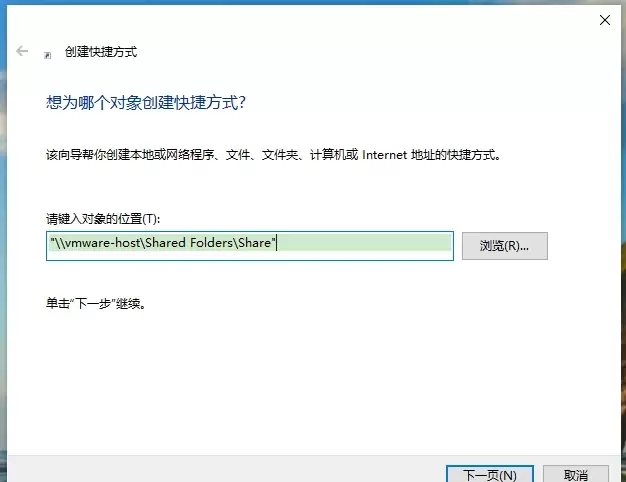
本文提供VMware虚拟机共享文件夹的配置与验证方法。核心步骤包括:确保VMware Tools已安装,在虚拟机设置中启用共享文件夹并添加主机目录,最后通过读写测试文件确认传输正常。适用于Windows及Linux虚拟机,旨在解决主机与虚拟机间文件交换问题。
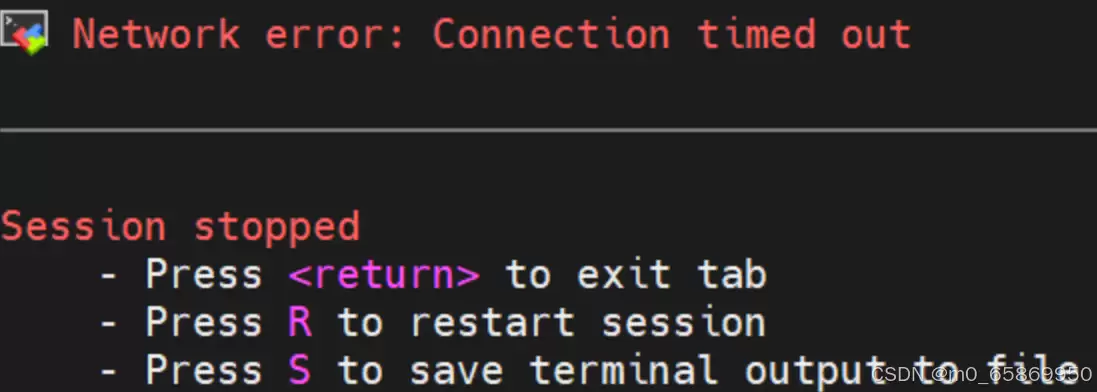
MobaXterm连接虚拟机超时,常见原因为防火墙未关或IP地址变动。先执行systemctlstatus/stop/disablefirewalld关闭防火墙,再通过ifconfig查看虚拟机当前IP,与session中设置的地址比对并修正,即可恢复正常连接。

JDK GC日志配置:从传统参数到统一日志系统想实时监控Ja va虚拟机的垃圾回收频率和耗时?直接在启动参数里加上GC日志开关就行。但这里面有个雷区——JDK版本不同,参数差异非常大。JDK 8及以前的老套路,在JDK 9之后基本失灵,必须切换到全新的-Xlog统一日志系统。下面把两个时代的配置方式

关机状态下直接扩展.vmdk容量,启动后用fdisk创建类型为8e的LVM分区,partprobe刷新分区表,再pvcreate、vgextend、lvextend并resize2fs或xfs_growfs完成扩容。 VMware虚拟机磁盘空间告急,df -h 显示 /dev/mapper/cent
启动VMwareWorkstation后,点击顶部菜单栏的“帮助”选项,选择“在线文档”,系统将自动打开浏览器并跳转至官方在线文档页面,方便用户查阅相关手册和指南。
在VMwareWorkstation中启用VNC连接需依次操作:进入虚拟机设置,选择“选项”标签页,找到并打开“VNC连接”功能。勾选启用后,设置监听端口与连接密码,最后保存配置即可。此后可通过VNC客户端远程访问该虚拟机。
VMwareWorkstation的磁盘映射功能可将虚拟机关闭或挂起后,通过编辑虚拟机设置、选择硬盘设备、点击高级选项中的映射按钮,并指定一个本地盘符,从而在Windows主机上像访问本地硬盘一样直接读写虚拟机磁盘内的文件。

为限制虚拟机与宿主机间的数据交换,可通过VMwareWorkstation禁用复制粘贴功能。具体操作为:启动虚拟机后进入“编辑虚拟机设置”,在“选项”标签页中选择“客户机隔离”,取消勾选“启用复制粘贴”并确认保存。设置生效后,两者间的剪贴板数据传输即被阻断。
VMwareWorkstation可通过设置菜单切换为深色主题。打开软件后,依次点击“编辑”“首选项”,在“显示”分类中选择“颜色主题”为深色,确认后界面即更新。该操作简单快捷,能调整视觉效果并缓解眼部疲劳。
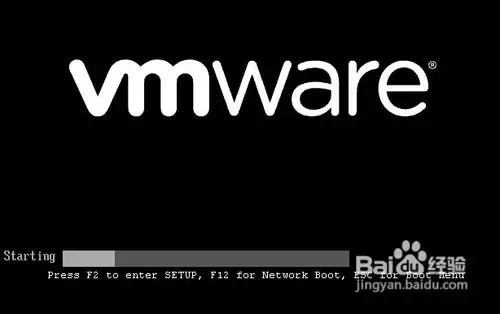
大家都知道,适当地调整BIOS设置能加快机器启动速度。其实对虚拟机来说,道理完全一样——而且虚拟机的运行速度本来就不如物理机,所以优化它的BIOS反而更有价值。下面以VMware 8为例,聊一聊虚拟机的BIOS里哪些地方值得动一动。 准备工作 操作系统:Windows 7 + VMware Work




AirBuddy 3 是面向 macOS 的蓝牙外设增强工具,可集中查看 AirPods、Beats 与苹果设备电量,提供快速连接、播放控制、电量提醒、桌面小组件和多台 Mac 外设接力等功能。

AirServer macOS版可把 Mac 转换为无线投屏接收端,通过 AirPlay 或 Google Cast 接收手机、平板和电脑画面,并支持多设备同时连接、高清镜像及会话录制,适合家庭娱乐、课堂教学、会议演示和应用展示。

AnyDesk macOS版是一款适用于远程办公、设备维护和客户支持的远程桌面工具,可连接并操作异地计算机,支持文件传输、无人值守访问、会话权限控制及跨平台协作。


AirServer Windows版可把电脑变成AirPlay、Google Cast和Miracast无线投屏接收端,适合会议演示、课堂教学及家庭大屏分享。发送设备通常无需另装客户端,并可同时接收和智能排列多个镜像会话。
AlwaysUp是一款面向Windows的系统服务注册与程序托管工具,可让普通应用、脚本及批处理在无人登录时随系统启动,并通过状态检测、异常重启、资源监控和邮件通知保障关键任务持续运行。


